Group your campaigns with tags
Last updated: August 19, 2026
You can add your own tags to each campaign. Then you can filter the campaign list and see only the campaigns with those tags. Use tags when you have many campaigns and you must find one quickly.
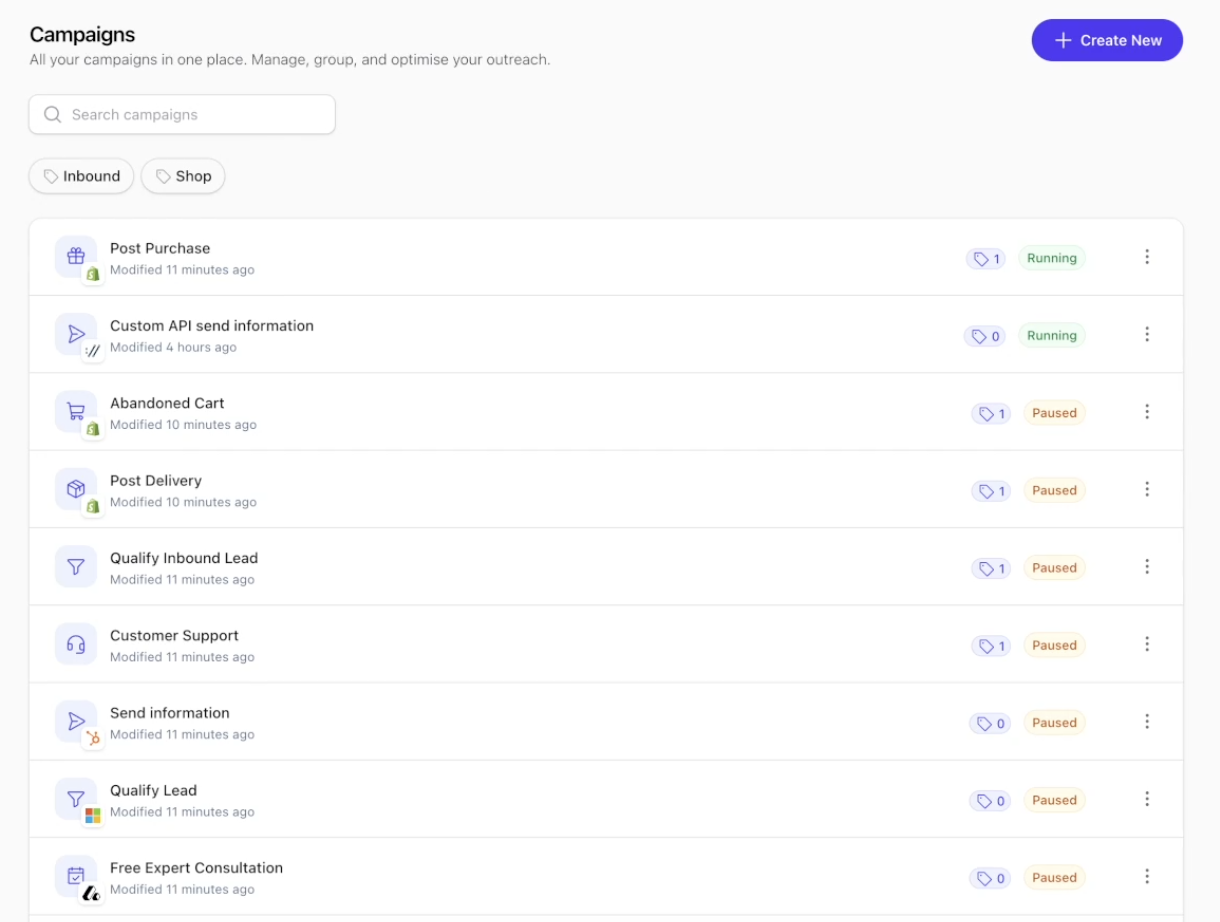
The same release adds a name search, a new order for the list, and an integration logo on each campaign row.
To see all of this, go to Campaigns in the main menu.
Add the first tag to a campaign
Find the campaign in the list.
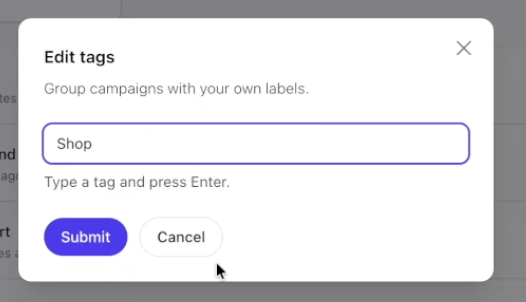
Click the tag badge on the campaign row. The badge shows the number of tags on that campaign. A campaign with no tags shows 0.
Type the tag in the field.
Press Enter. To add more tags, type each tag and press Enter again.
Submit the form.
You can also click the three-dot menu on the campaign row and then click Edit tags.
💡 Tip: A comma does the same as the Enter key. Type Memo, Winter to make two tags in one step.
Add a tag that you used before
After you make your first tag, the field changes. It becomes a list of the tags that you already use.
Click the tag badge on the campaign row.
Click the field, then select a tag from the list. You can type to find a tag in the list.
To make a new tag, click the + icon.
Type the new tag in Create a new tag, then confirm it. A new tag must have 50 characters or fewer.
Submit the form.
There is no limit to the number of tags on one campaign.
Remove a tag from a campaign
Click the tag badge on the campaign row.
Remove the tag from the field.
Submit the form.
Outcraft keeps a tag while a minimum of one campaign uses it. When you remove the last use of a tag, the tag goes away.
How Outcraft compares two tags
Outcraft ignores the case of the letters. Thus Memo and MEMO are the same tag.
⚠ Outcraft also ignores spaces, accents, and punctuation. Two tags that look different can become one tag. For example, Black Friday, black-friday, and BLACK_FRIDAY are all the same tag.
Outcraft shows the spelling that you used when you made the tag, and it makes the first letter a capital. If you make the tag iPhone, all your campaigns show IPhone. If you make the tag smart campaigns, all your campaigns show Smart campaigns.
You cannot rename a tag. To change the spelling of a tag, remove the tag from all your campaigns. Then add the tag again with the new spelling.
Filter the list by tag
Your tags show as chips above the campaign list.
Click a chip to start the filter.
Click more chips to add more tags to the filter.
Click a selected chip again to remove it from the filter.
Outcraft shows each campaign that has a minimum of one of the selected tags. Thus more chips show more campaigns, not fewer campaigns.
💡 Tip: Outcraft puts your filter in the address of the page. Add the page to your bookmarks, or send the address to a colleague, and the same filter starts again.
Search for a campaign by name
Type in the Search campaigns box above the list. Outcraft shows each campaign that has your text in its name.
The search examines the name only. It does not examine the company, the objective, or the tags. The case of the letters makes no difference.
The search and the tag filter operate together. If you select the chip Memo and search for spring, Outcraft shows only the campaigns that have the tag Memo and the text spring in the name.
The order of the campaign list
Outcraft puts the campaigns with the status Running at the top of the list. Then it puts the other campaigns below them. In each group, the campaign that changed most recently comes first.
A campaign with the status Paused and a campaign with the status Setup Not Completed are both in the second group.
You cannot change this order.
💡 Tip: A change to the tags of a campaign does not move the campaign to the top of the list. Outcraft does not count a tag as a change to the campaign.
The integration logo
Each campaign row shows a small logo at the bottom right of the campaign objective icon. The logo shows which integration supplies the leads to that campaign.
A campaign that has no integration shows no logo. The logo does not show on a small screen, for example on a telephone.
Limits
There is no screen to rename a tag or to delete a tag from all campaigns at the same time.
Archived campaigns and A/B test campaigns do not show in the list. Their tags do not show in the chips.
Tags are not available in the API.
⚠ Be careful when you archive a campaign. If you archive the last campaign that uses a tag, the tag goes away. If that tag is in your filter at that time, Outcraft removes it from the filter.