Setting Up Slack Hand-off Notifications
Last updated: July 16, 2026
Prerequisites
An Outcraft AI account with a campaign you’re creating or editing
A Slack workspace where you can approve app installations
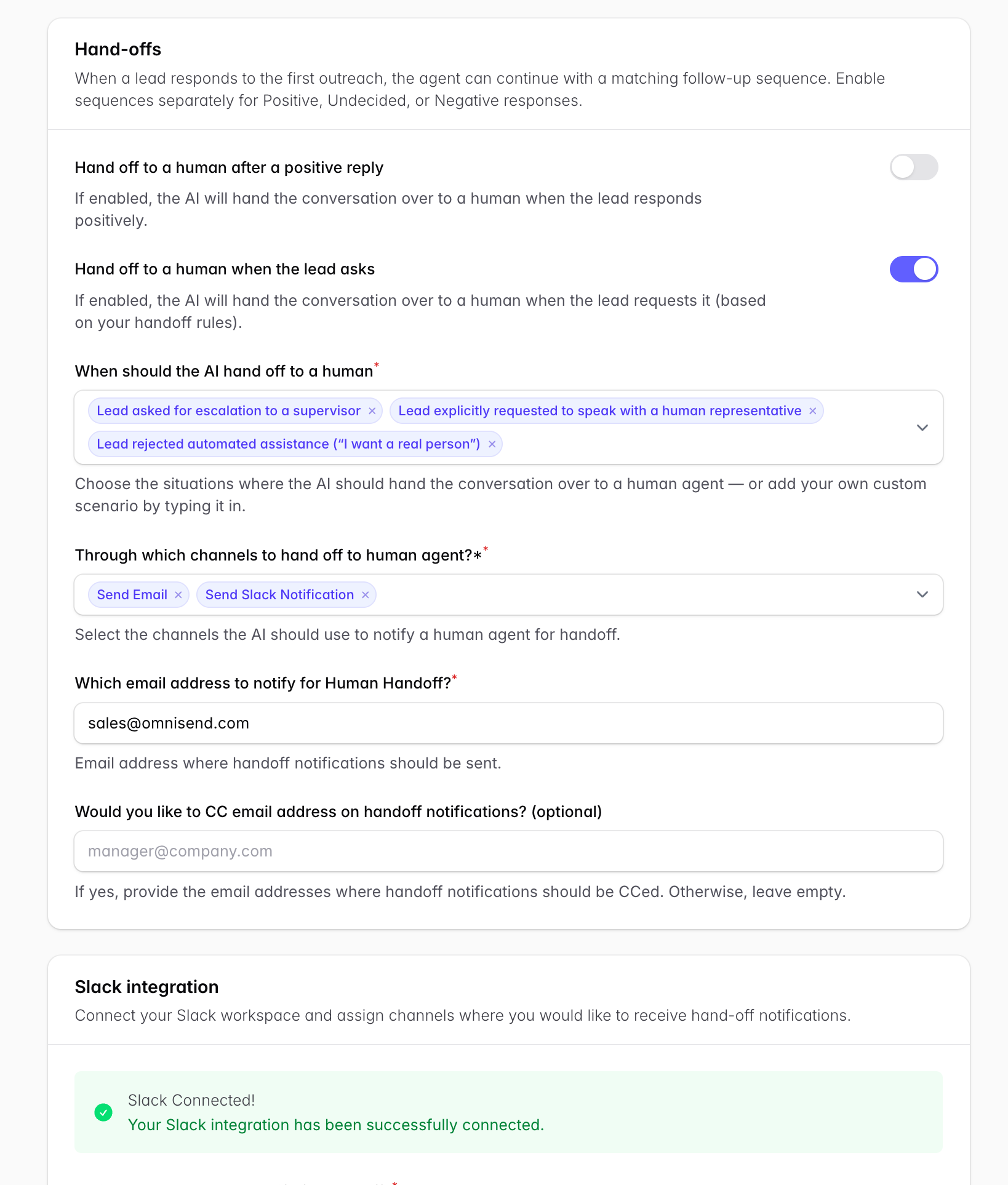
When the AI can’t resolve a conversation or a lead asks for a human, Outcraft hands the conversation off and notifies your team. Notifications can go to email, Slack, or both.
Choose hand-off triggers
In General Settings → Hand-offs, decide when the AI hands a conversation to a human — for example after a positive reply, when the lead asks, or on specific objections. Pick from the list of available objections and situations.
Connect Slack
Under notification channels, click Connect Slack Account.
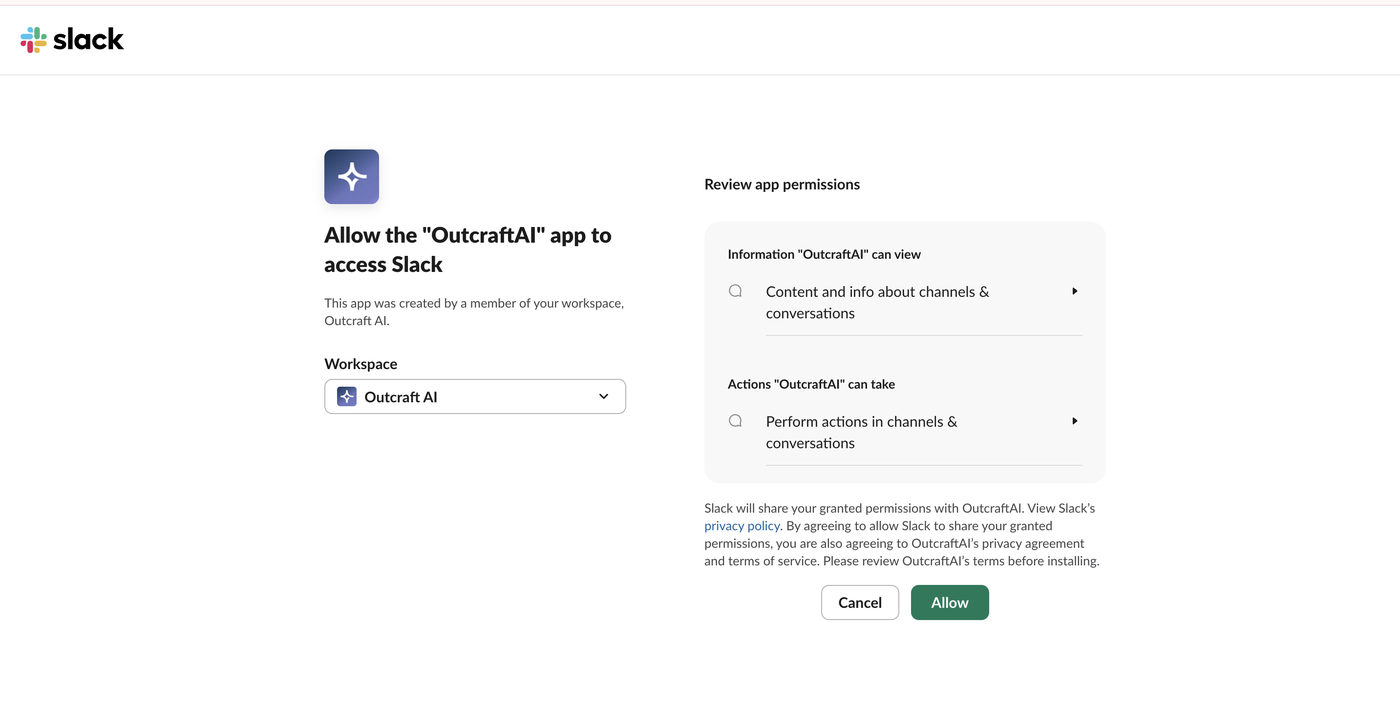
Choose the workspace.
Approve the permissions.
What the notification contains
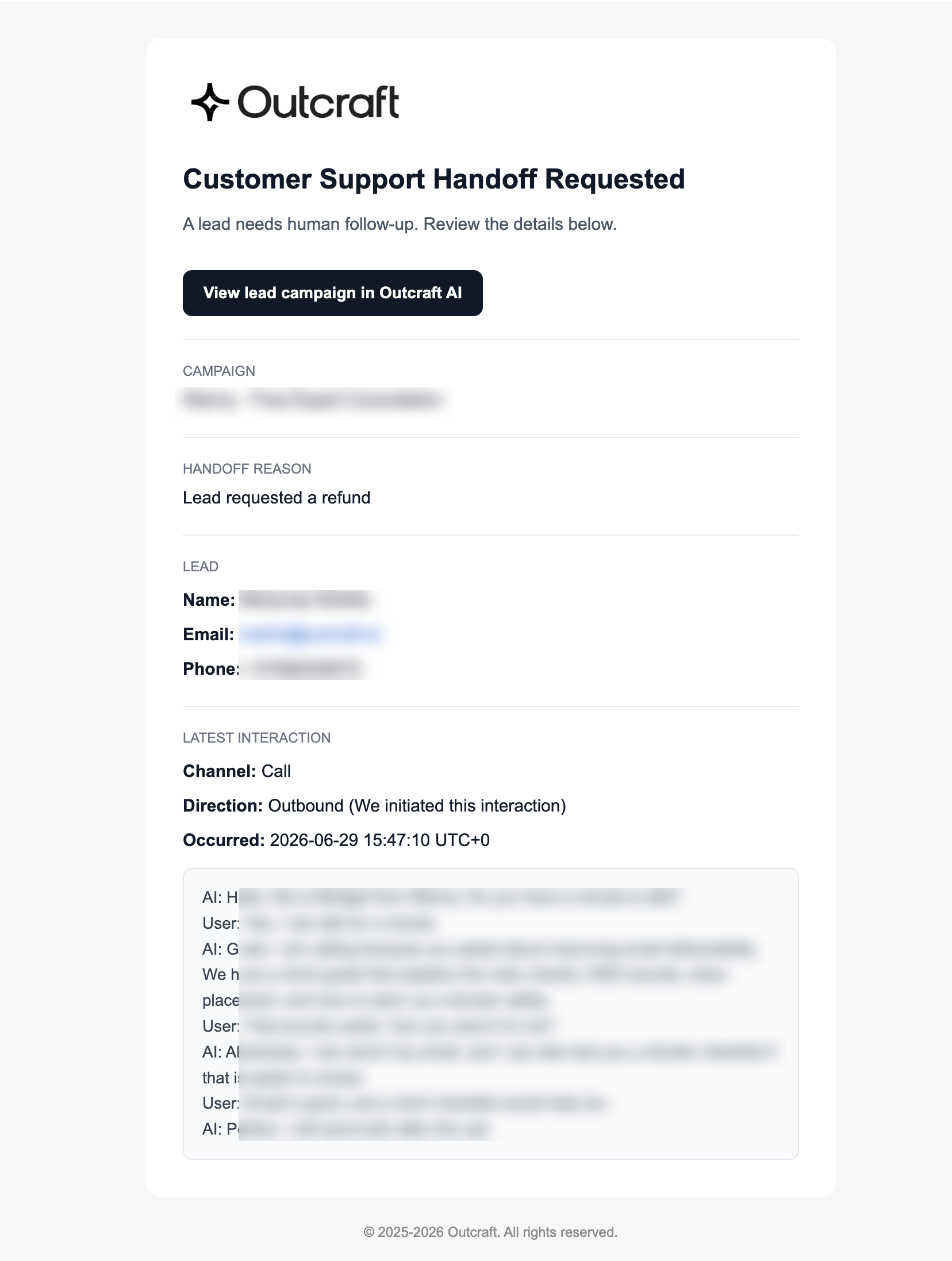
Hand-off Slack messages (and emails) include the core lead information, the conversation transcript, and the time.
For inbound support campaigns, always enable hand-offs with at least one channel — without it, a caller the AI can’t help has nowhere to go.
Related
Reviewing and resolving hand-offs → Understanding Lead Statuses, Details & Interactions
Email-only hand-offs and CC settings → General Settings guide