How to Use Start Conditions
Last updated: August 12, 2026
Start Conditions
Previously known as "Campaign Conditions," Start Conditions allow you to create and control how and when a lead starts within Outcraft AI.
1. Purpose
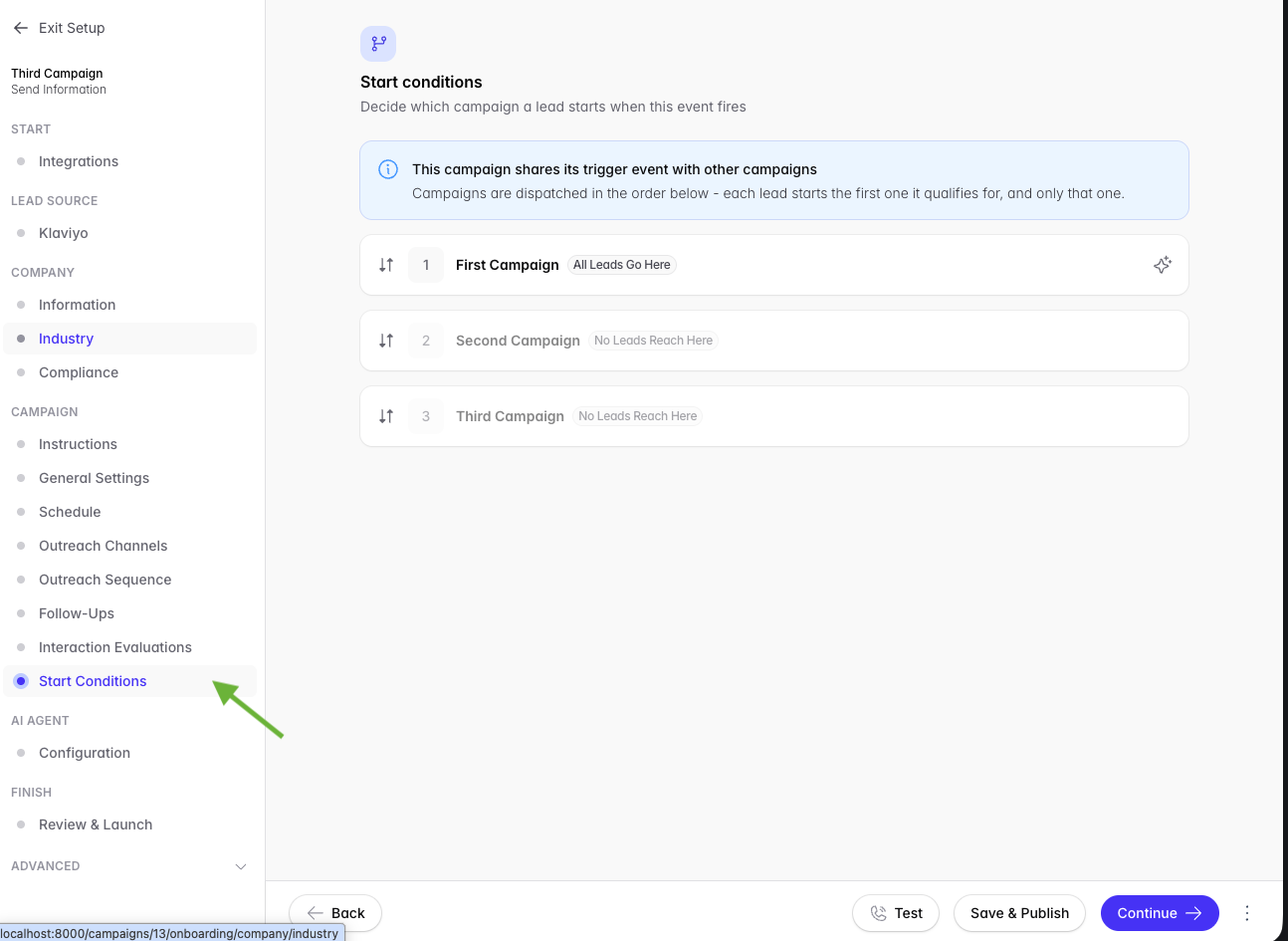
Two or more of your campaigns can use the same trigger event. When the trigger event occurs, Outcraft must select one campaign for the lead. The Start Conditions page shows the order of these campaigns. The page also shows the rules of each campaign.
Outcraft starts one campaign only for each lead.
2. How to find the page
Open the campaign.
In the sidebar, find the group CAMPAIGN.
Click Start Conditions.
The page is below Interaction Evaluations. The page is above the group AI AGENT.
Note: Inbound campaigns do not have this page.
3. How Outcraft selects a campaign
Outcraft reads the list from the top to the bottom. For each campaign, Outcraft compares the lead with the rules of that campaign. Outcraft starts the first campaign that accepts the lead. Outcraft then stops. The lead does not start the other campaigns in the list.
If no campaign accepts the lead, the lead starts no campaign.
A campaign that has no rules accepts all leads. Put such a campaign at the bottom of the list. If you put it higher, the campaigns below it get no leads.
4. The labels on each row
Label | Meaning |
|---|---|
All Leads Go Here | The campaign has no rules. It accepts each lead that comes to it. |
No Leads Reach Here | A campaign higher in the list accepts all leads. This campaign gets no leads. |
Campaign Off | The campaign is off for this trigger event. |
Dispatch Limit Reached | The campaign has its maximum quantity of leads. |
Not Published | The setup of the campaign is not complete. |
Outcraft shows a row in a light colour if the campaign gets no leads.
5. How to write the start conditions
Find the row of the campaign.
Click the star icon. The tooltip shows Edit conditions with AI.
Type your instruction in the box. Use usual language.
Click Generate.
Read the new rules. Outcraft shows the rules as one formula.
Click Confirm to keep the new rules.
To write a different instruction, click Back.
Example of an instruction:
Only start for leads from the US or Canada with an order value over 100
Example of the formula that Outcraft makes:
(country_code = 'US' OR country_code = 'CA') AND (context.total_price > 100)
Note: Confirm replaces all the rules of that campaign. The new rules operate immediately. There is no publication step for the rules.
Note: You cannot change one rule. To make a change, do this procedure again. Tell the AI which rule to add, to change or to remove. For example, type also allow leads from Spain.
If the AI cannot make rules from your text, the page shows a message. Write your text again. Give a field name and a value.
6. What the rules can examine
The rules can examine these lead fields:
the country
the language
the email address
the telephone number
the time zone
the values in the lead context (for example: cart value, number of items in the cart, shipping cost, etc.)
The rules can also examine the data of the trigger event. The order value is an example of such data.
The rules can use these comparisons:
is equal to
is not equal to
is more than
is less than
contains
is empty
is not empty
Caution: Read the formula before you click Confirm. If a rule examines a field that the trigger event does not send, that rule never agrees. Outcraft gives no warning.
7. How to change the order
Find the row of the campaign.
Drag the handle at the left of the row. The tooltip shows Drag to change the dispatch order.
Put the row in the new position.
Outcraft keeps the new order immediately. There is no Save button for the order.
Note: The handle shows only if two or more campaigns use the same trigger event.
8. How to remove the start conditions
Find the row of the campaign.
Click the remove icon.
Read the message.
Click Remove all.
Caution: A campaign with no rules accepts all leads. This procedure does not stop the campaign. To stop the campaign, set the campaign to off.
9. Limits
The rules belong to the campaign. The rules do not belong to the trigger event. If a campaign uses two trigger events, the two trigger events use the same rules.
The page shows the first trigger event of the campaign only.
The order does not operate during an A/B test. During an A/B test, Outcraft divides the leads between the test campaigns at random. The page shows a message when an A/B test operates.
You cannot make a rule manually. The AI makes all the rules.
If a campaign shows Dispatch Limit Reached or No Leads Reach Here, you cannot change its rules. First correct the campaign that is higher in the list.