Add more users to your Outcraft AI account
Last updated: July 27, 2026
Outcraft AI provides only one login for each account. There can be only one email address and one password for each account.
To let more users in your organization use the account, use a secure password manager, for example 1Password. A password manager keeps your credentials safe when you give them to other users in your organization.
If you log in to Outcraft AI with Google Single Sign-On (SSO) and want to give your password to other users, do these steps:
Log out of your Outcraft account.
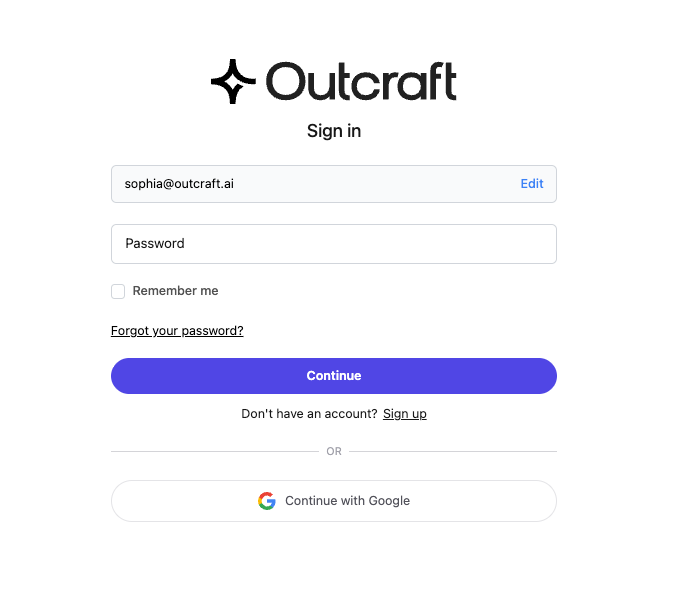
Enter your email address.
Select “Continue”
Select the "Forgot Password" option.
Follow the instructions to make a new password.
Put the new password in a password manager, for example 1Password.
You can continue to log in with Google SSO. You can also log in with your email address and the new password.
Note: The users that you give access to can also see and change the billing details.