Setting Up Your Company Profile
Last updated: August 13, 2026
Setting Up Your Company Profile
The Company section defines who your company is so the AI can talk about it accurately. The more the AI knows, the better it performs. You can provide FAQs, support macros, and SOPs — you don’t need to write anything new, just reuse what your support team already has.
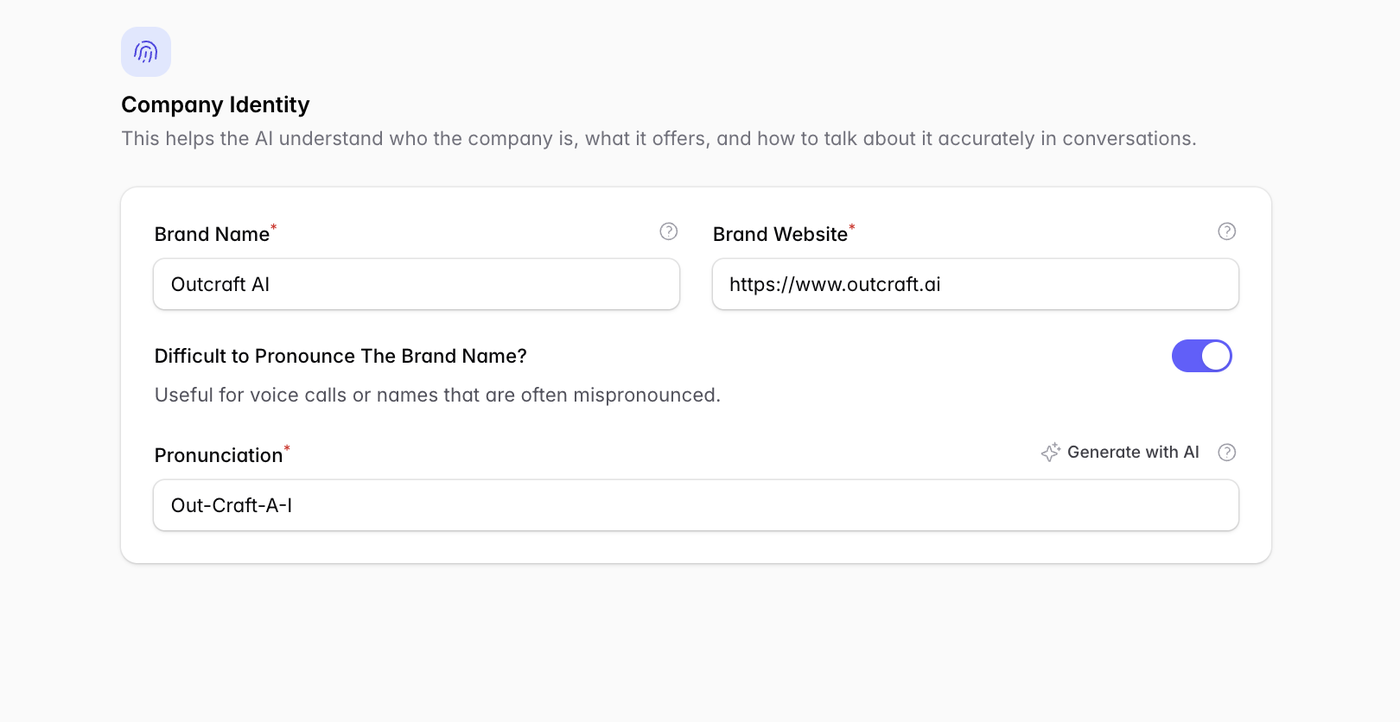
1.1 Identity
Enter your brand name and website.
If your name is easy to mispronounce on calls, toggle Difficult to Pronounce and give a phonetic spelling (e.g. “Out-Craft-A-I”), or use Generate with AI.
1.2 Industry
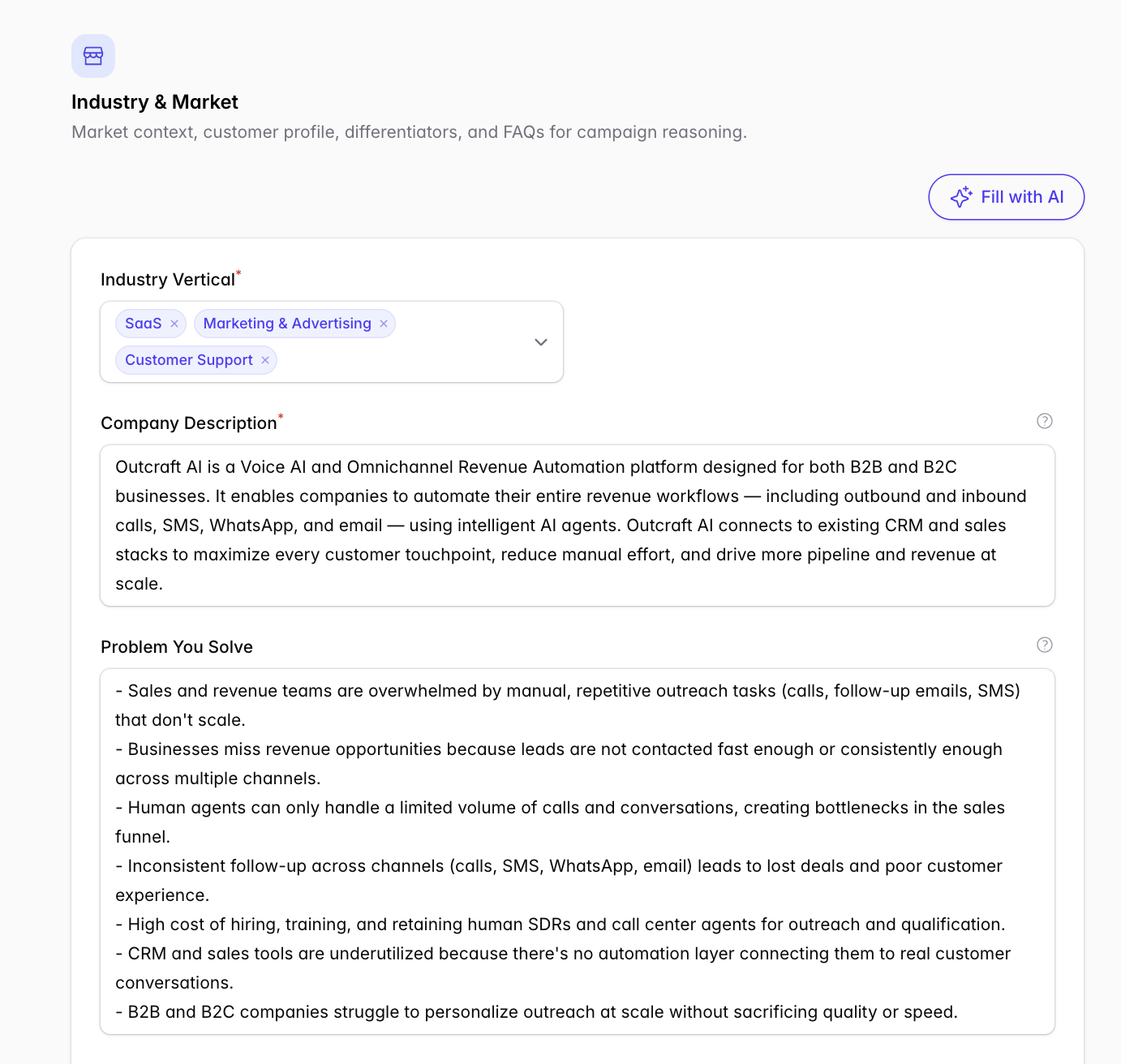
Market context, customer profile, differentiators, and FAQs the AI reasons from.
Click Fill with AI to draft everything from your website, then edit. Don’t overthink this one — most companies use the filled-in version. Do expand the Frequently Asked Questions (FAQ) section: it gives the agent extra context on calls.
1.3 Compliance
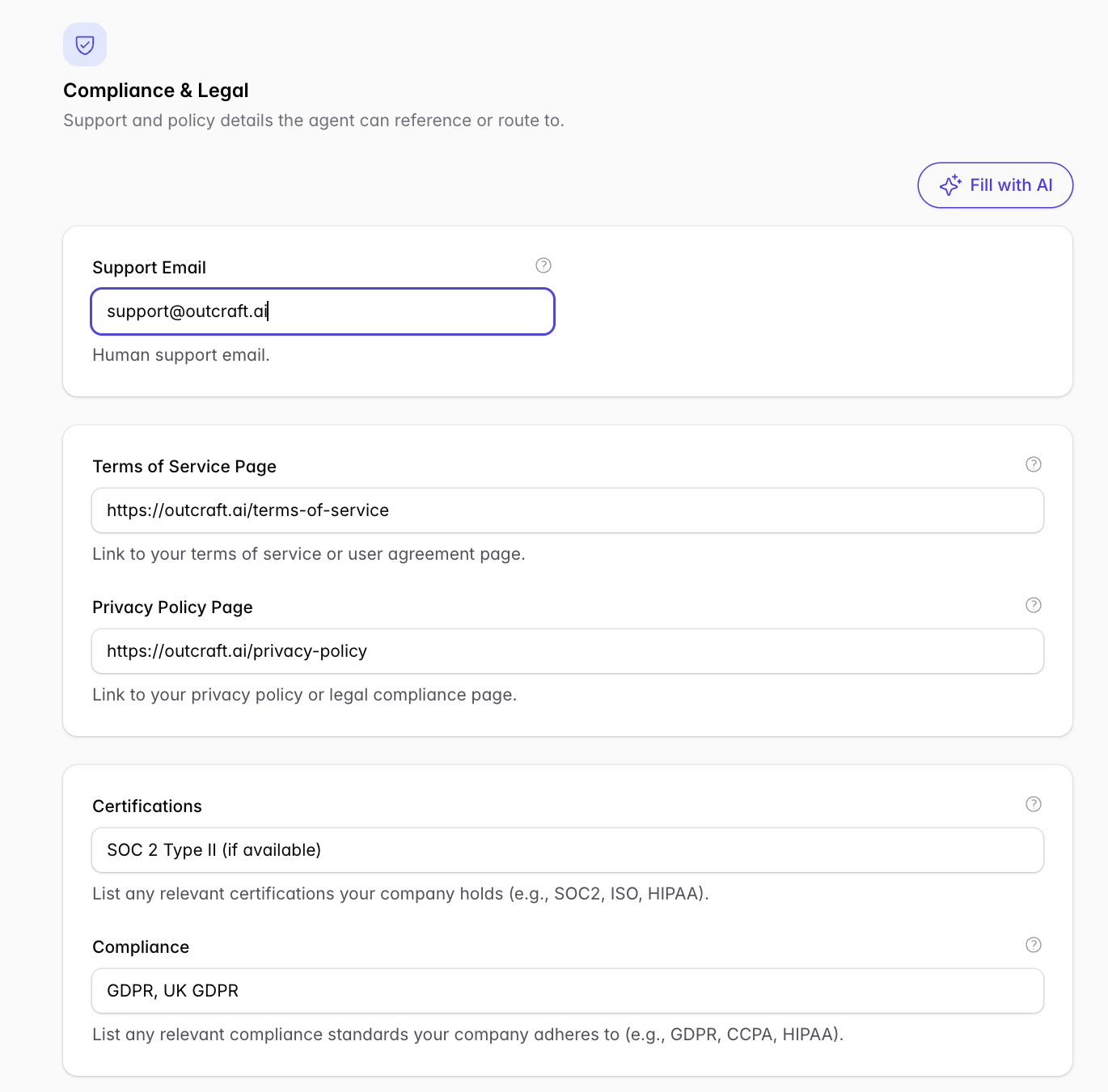
Support email, Terms and Privacy URLs, certifications, and compliance standards the agent can reference or route to. Fill with AI can draft this too. Add any industry-related compliance certifications.
1.4 Operating in the US or Canada
If your business is active in the United States or Canada — selling to, supporting, or contacting customers in those markets — turn on Operating in the US or Canada? at the top of the Compliance section. This unlocks three extra blocks. They’re required before your agent can contact US or Canadian numbers.
Outcraft registers your business with the carriers so that your text messages reach United States numbers. You start the registration in your company profile.
Outcraft submits the registration when you publish
Outcraft submits the registration at the moment you publish the campaign. A saved form is not a submission. Approval is not immediate, and the carriers can reject it. When Outcraft finds a problem before submission, the app opens a window named Some Company Details Still Need Attention. After you correct the details, final verification usually takes 2 to 3 business days.
Outcraft does not block an unregistered message
Outcraft sends your text message even when the registration is incomplete or still under review. The carrier can then block the message, and the message does not arrive. The app gives you no warning that a message did not arrive. Check your company profile before you rely on text messages to United States numbers.
Geo Permissions can also stop a text message
Geo Permissions is a separate control, and it works independently of the registration. Each campaign holds a list of allowed destination countries. Outcraft does not send a text message to a country that the campaign does not allow. Open Campaigns → [Campaign Name] → Advanced → Geo Permissions to check the list.
Related
What your policy pages must contain → Privacy Policy and Terms for US & Canada Calling & Messaging Compliance
Where your numbers can operate → Phone Number Coverage by Country: Twilio & Telnyx
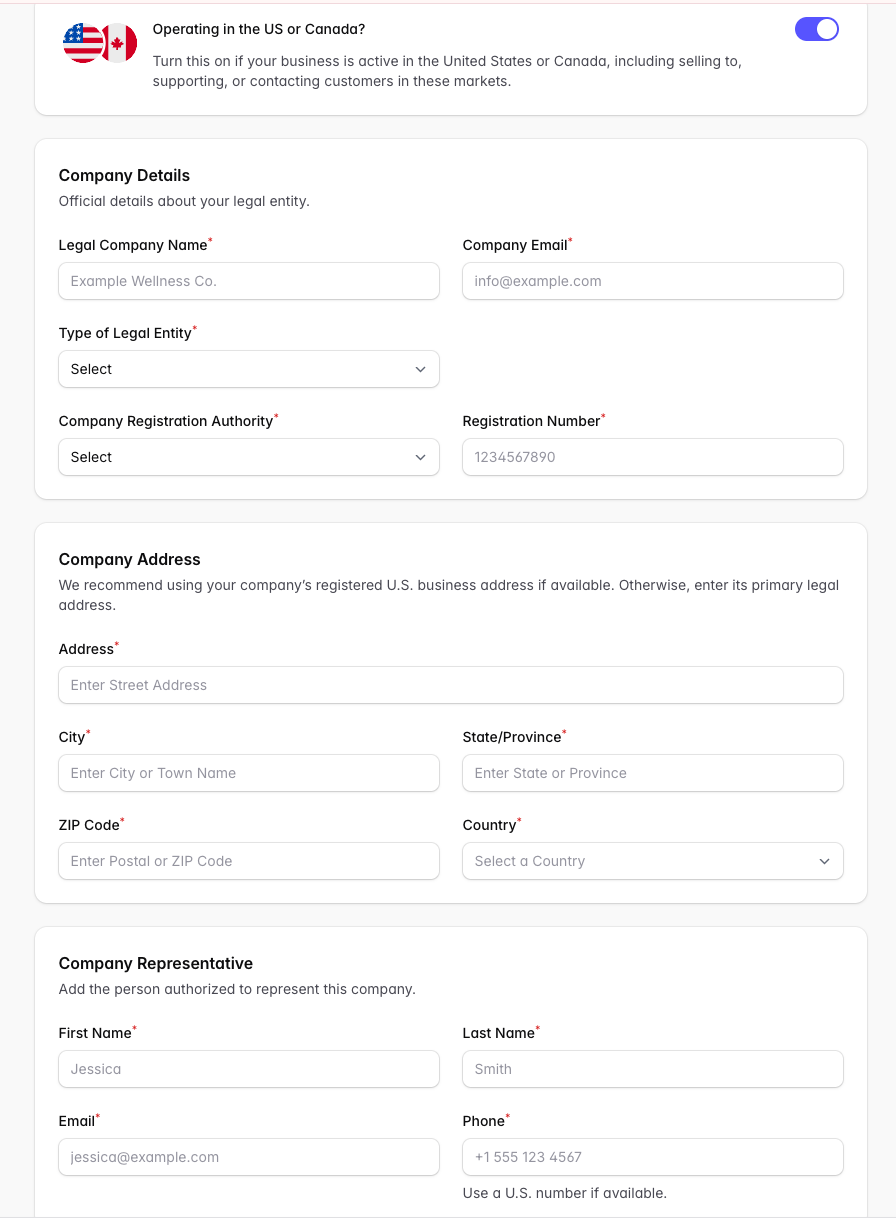
Everything here has to match your official registration records exactly. Unlike the sections above, this is not a place to use Fill with AI — a mismatch will fail verification.
Company Details
Official details about your legal entity.
Field | What to enter |
Legal Company Name | Your registered legal name, not your brand name |
Company Email | A company-domain address (avoid Gmail, Outlook, and similar) |
Type of Legal Entity | e.g. Private Corporation, LLC, Sole Proprietor, Non-Profit |
Company Registration Authority | The body you’re registered with (e.g. IRS for a US EIN, CRA for Canada) |
Registration Number | Your EIN, BN, or equivalent registration number |
Company Address
Use your company’s registered U.S. business address if you have one. Otherwise enter its primary legal address. All fields — street, city, state or province, ZIP or postal code, and country — are required.
Company Representative
The person authorized to represent the company. Enter their first name, last name, email, and phone number. Use a U.S. number if one is available.
Once you’ve saved this section, verification runs in the background. If anything comes back rejected, it’s almost always a mismatch between what you entered and what’s on file with your registration authority — check the legal name and registration number first.
Next step
Continue to your campaign’s Instructions → Writing Your Campaign Brief: Instructions, Guardrails & Custom Fields