How to invite collaborators to your Outcraft AI account
Last updated: November 3, 2026
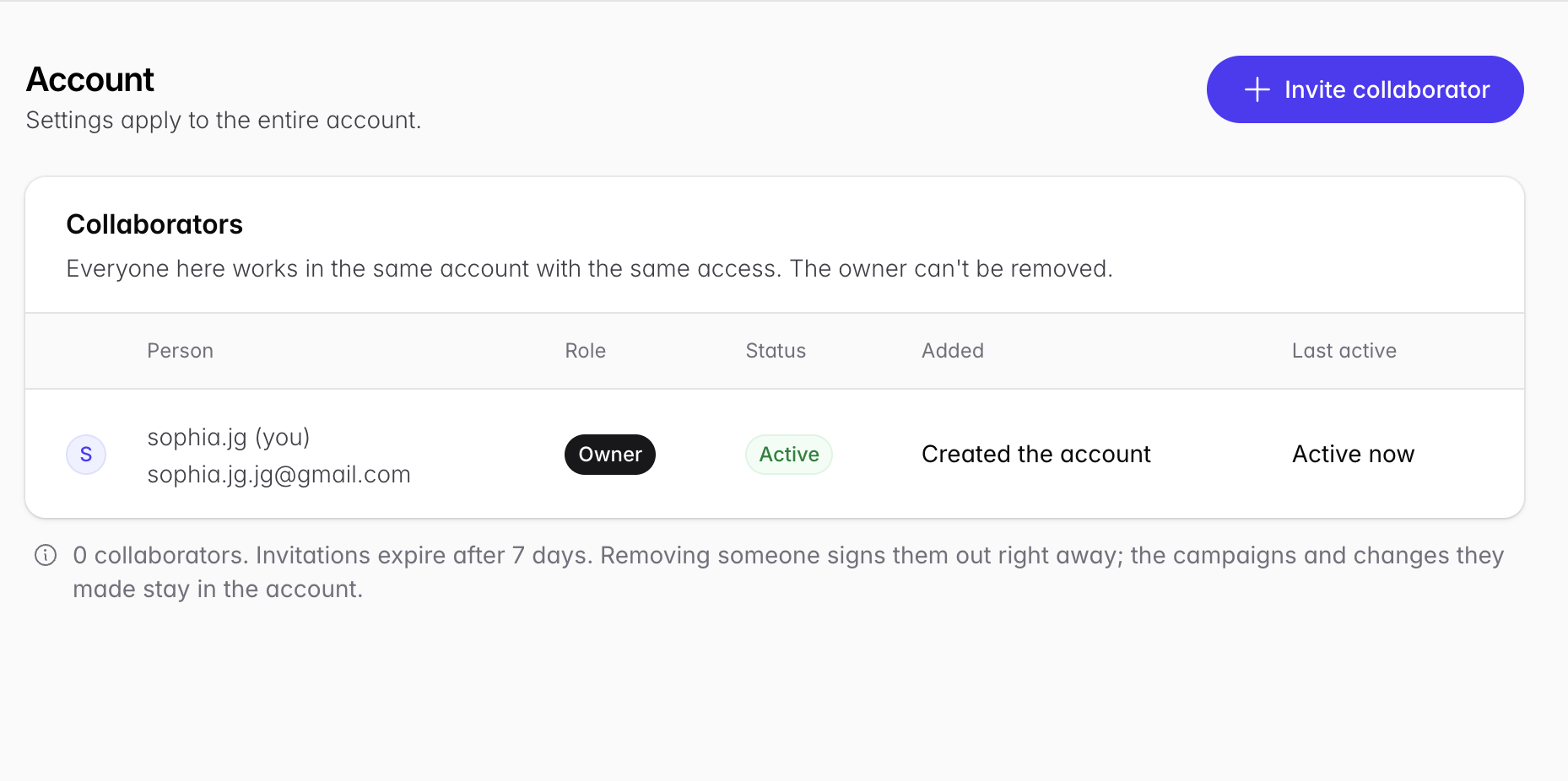
Use this guide to give your teammates access to your Outcraft AI account. Each collaborator gets their own login. Your team does not need to share one password.
1. Send an invitation
Go to Settings > Account.
Click Invite collaborator. The button is next to the page title, above the table.
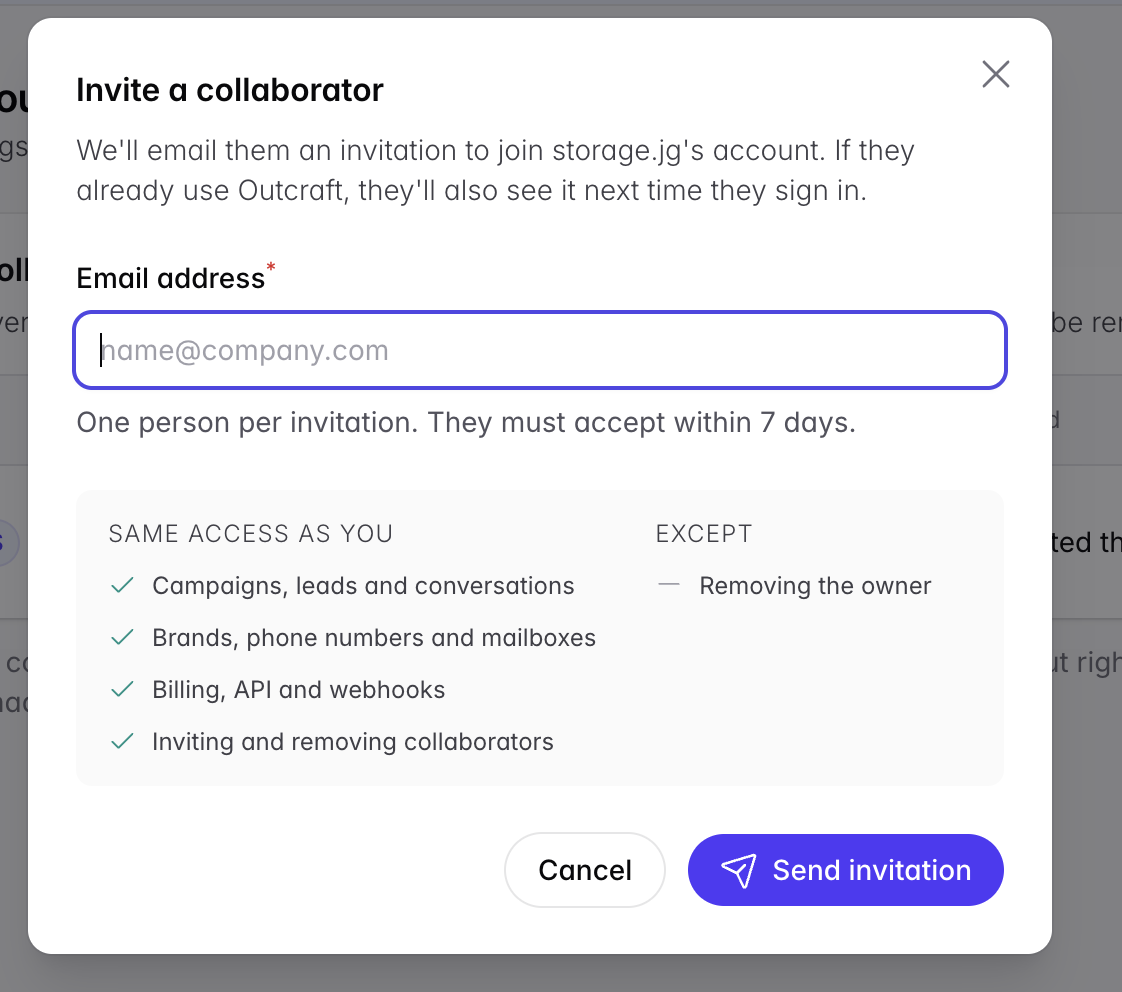
Enter the email address of your teammate.
Send invitation.
The invitation is valid for 7 days.
ℹ Note: Outcraft sends invitations only to email addresses that can receive mail. If the email domain has no mail server, you see the message That email address doesn't exist. Check the address for typos and try again.
2. Accept the invitation
A new person signs up from the invitation. They can use their email or Google.
A person who already uses Outcraft can accept the invitation from their account or from the invitation email.
The table on the Account page shows each person with a Role badge and a Status badge.
3. Work in more than one account
A person can be in more than one account. They can switch between these accounts. [CHECK: where the user clicks to switch accounts] A bar at the top of the page shows the account they work in now.
What collaborators can do
A collaborator has the same access as the owner. They can work with:
Campaigns
Leads and conversations
Brands
Phone numbers and mailboxes
API and webhooks
Other collaborators. They can invite and remove them.
IMPORTANT: A collaborator cannot remove the owner of the account.
Notes
The account records each action of a collaborator in the activity log under their name.
Give access only to people you trust. Collaborators can change the same things as the owner.