Setting Your Campaign Schedule
Last updated: July 21, 2026
Schedule Settings control when the AI is allowed to reach out to (or answer) leads. To keep your outreach professional and effective, Outcraft lets you define exactly when the AI can contact leads — aligning its activity with your team’s business hours or the lead’s local timezone.
How timing works: intelligent timezone management
Outcraft takes the guesswork out of international or multi-regional outreach. You don’t need to think about where your leads are — a 9:00 start means 9:00 for each lead, wherever they live.
Automatic detection: the system infers each lead’s timezone from their phone number and country data.
Lead-first timing: even if you set your start time to 9:00 AM your time, Outcraft waits until it is 9:00 AM in the lead’s local timezone before reaching out.
Choosing your outreach window
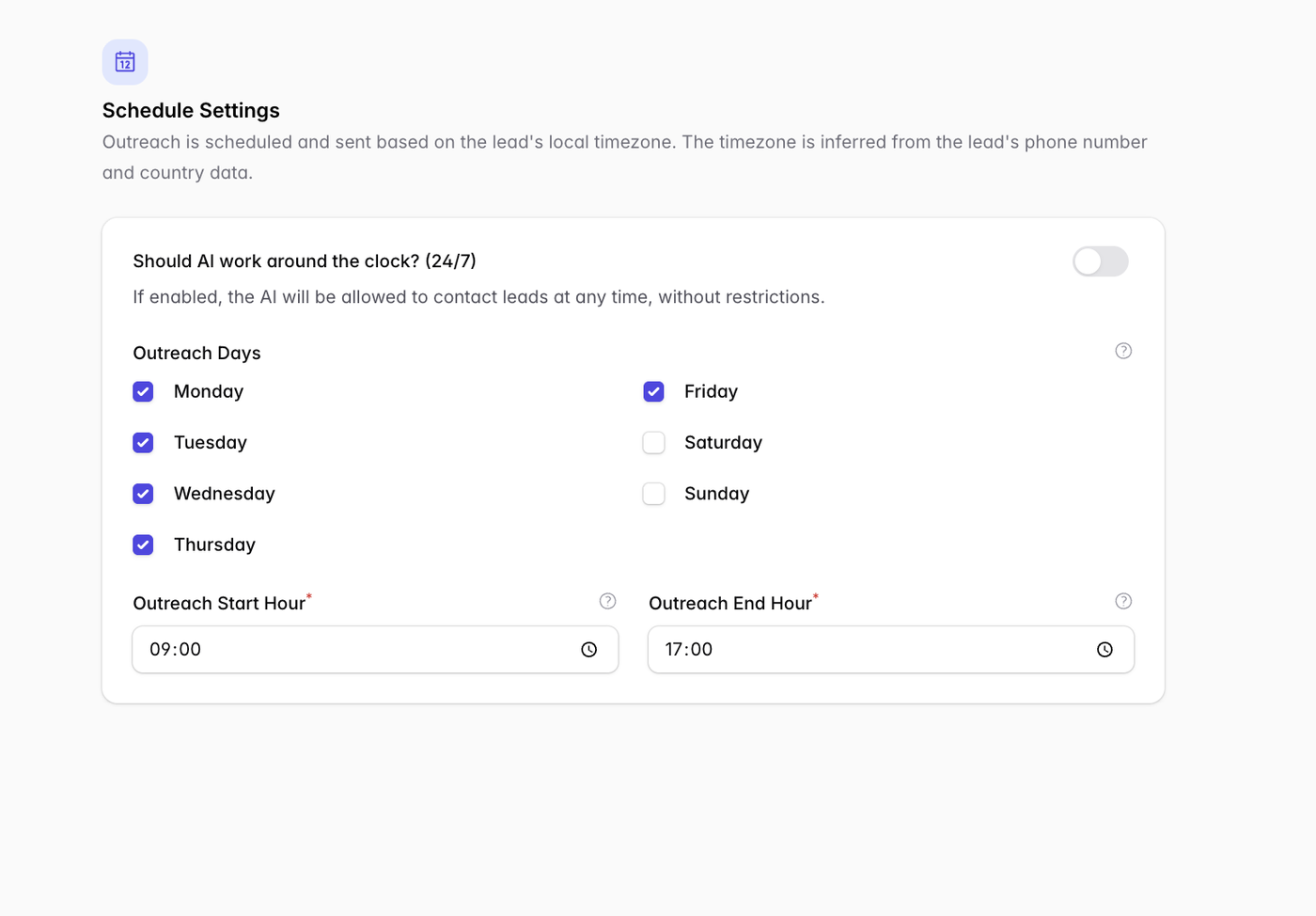
You have full control over the days and hours the AI operates. A 9:00–17:00, Monday–Friday window is a safe default for outbound calling campaigns.
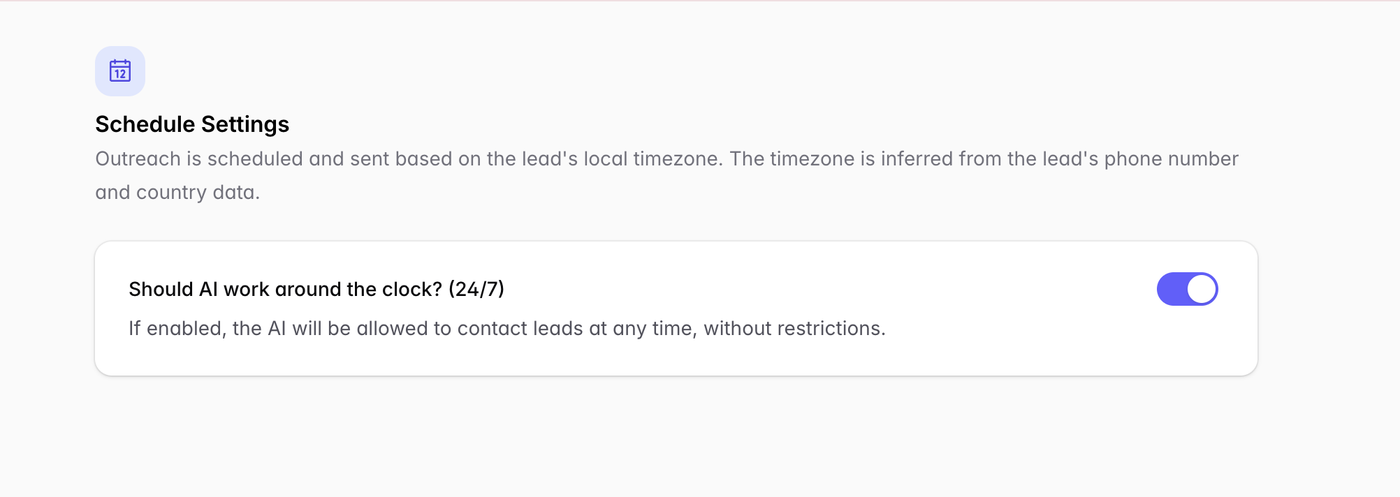
24/7 mode: toggle “Should AI work around the clock?” to let the AI contact and respond to leads at any time, day or night. Choose this if your campaign doesn’t use phone calls or SMS (so emails can send anytime), or for high-urgency inbound leads where an immediate response is critical.
Outreach days: select the specific days of the week the AI should be active. Most B2B teams toggle Monday through Friday to keep outreach within the standard workweek.
Start and end hours: define the active window during which the AI may reach out.
Inbound support campaigns
For an always-on support line, enable 24/7 so callers reach the agent at any hour. If you’d rather mirror staffed hours, turn 24/7 off and set days and a start/end window instead.
How to configure your schedule
Determine your 24/7 status: toggle the switch On for constant coverage, or Off for restricted hours.
Select your days: check the boxes for the days you want the AI to perform outreach.
Set your hours: use the clock icons to set your Outreach Start Hour and Outreach End Hour.
Save changes: make sure your settings are updated so they apply to all active sequences.
Troubleshooting
“Why isn’t my lead being contacted?” A common cause: it’s outside the schedule window in the lead’s local timezone. Outcraft waits for the next allowed slot.
Related
Outreach steps and their delays → Building Your Outreach Sequence & Follow-Up Sequences
Channel configuration → Configuring Outreach Channels