GoHighLevel Integration
Last updated: July 16, 2026
Prerequisites
An Outcraft AI account with a campaign you’re creating or editing
A GoHighLevel account with at least one sub-account (location) you’re an admin on
Permission to install marketplace apps on that GoHighLevel sub-account
Outcraft AI is currently listed as a Private app in the GoHighLevel Marketplace (not publicly searchable) — you install it via the direct link Outcraft provides
Setup Guide
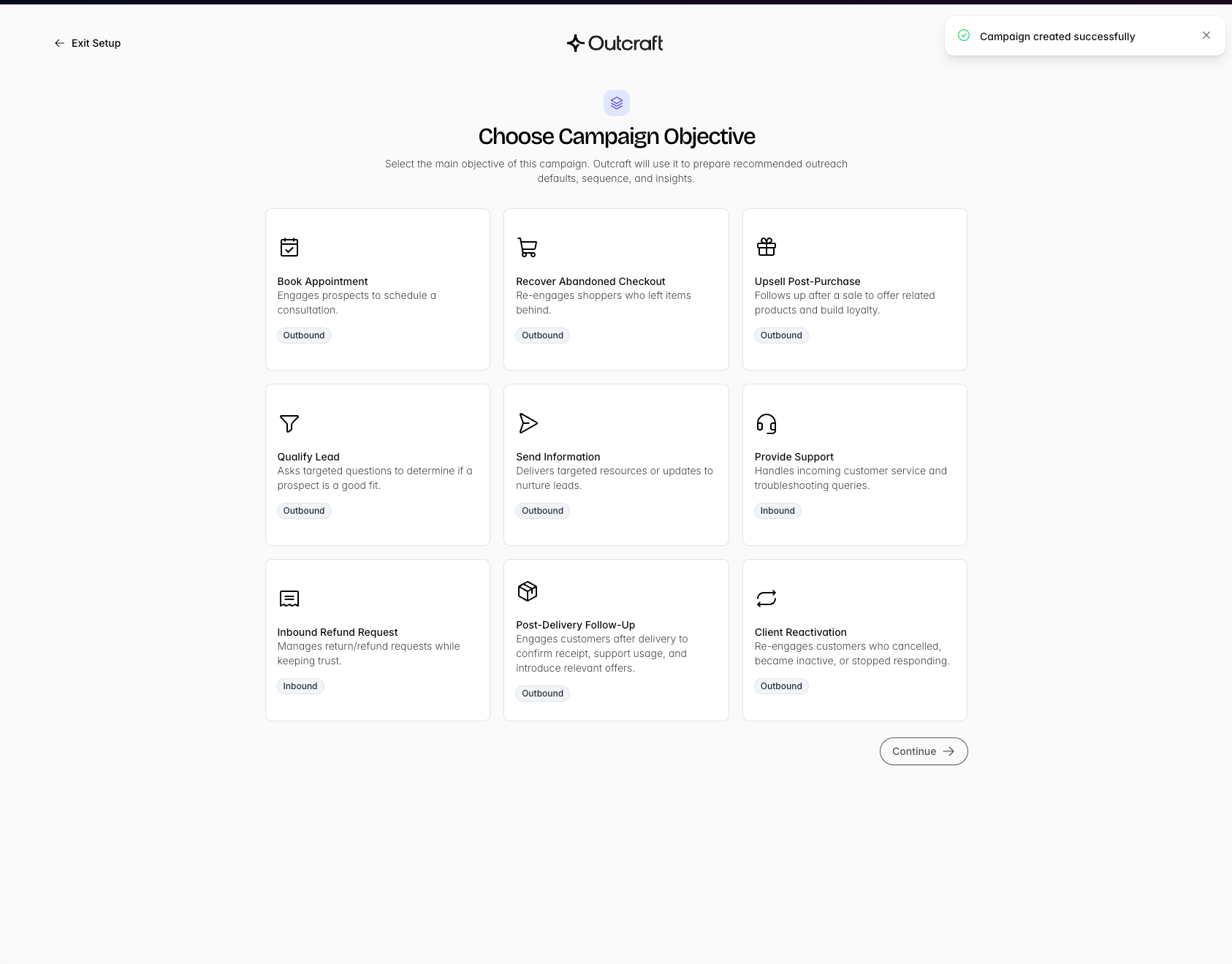
1. In Outcraft, go to Campaigns and click Create New. Name your campaign and choose a company, then pick a campaign objective (e.g. Book Appointment).
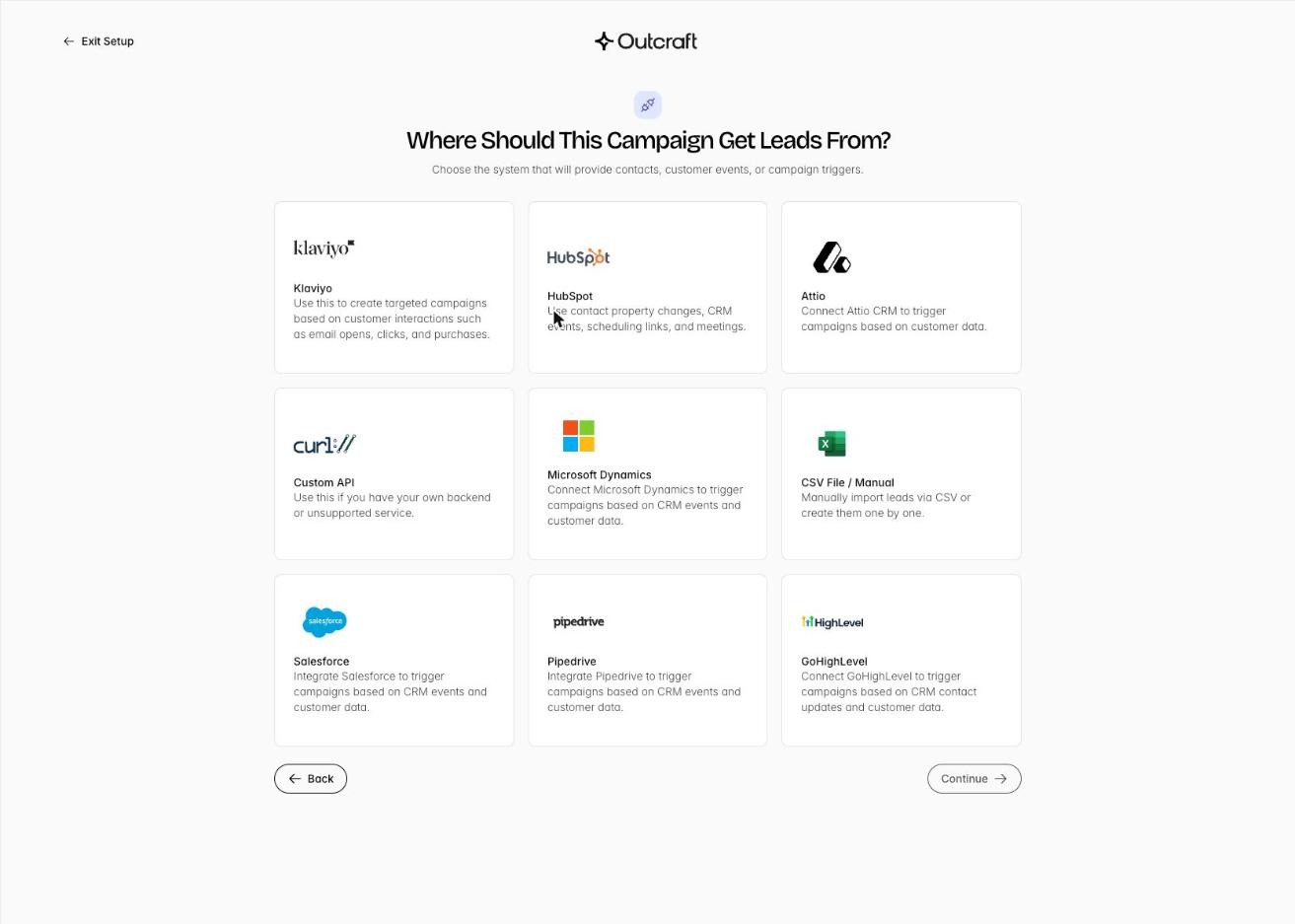
2. On “Where Should This Campaign Get Leads From?”, select GoHighLevel from the list of lead sources (alongside Klaviyo, HubSpot, Attio, Salesforce, Pipedrive, Microsoft Dynamics, Custom API, and CSV/Manual).
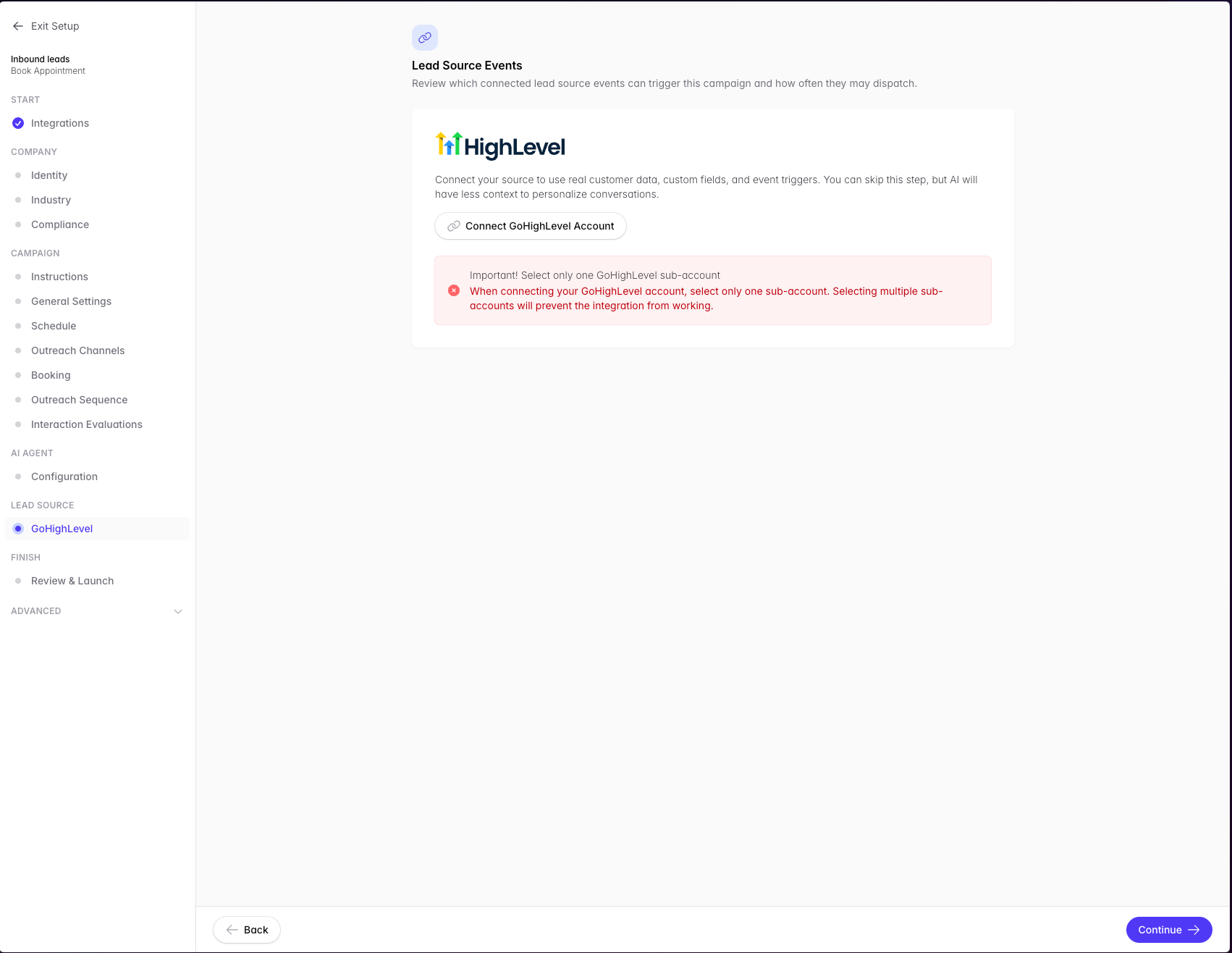
3. On the Integrations step, click Connect GoHighLevel Account. Important: when the sub-account picker appears, select only one sub-account — GoHighLevel integration supports only one sub-account per Outcraft user, and selecting more than one will break it.
4. You’ll be redirected to the GoHighLevel Marketplace to review the Outcraft AI app listing (currently Private) and the exact permissions it requests before installing.
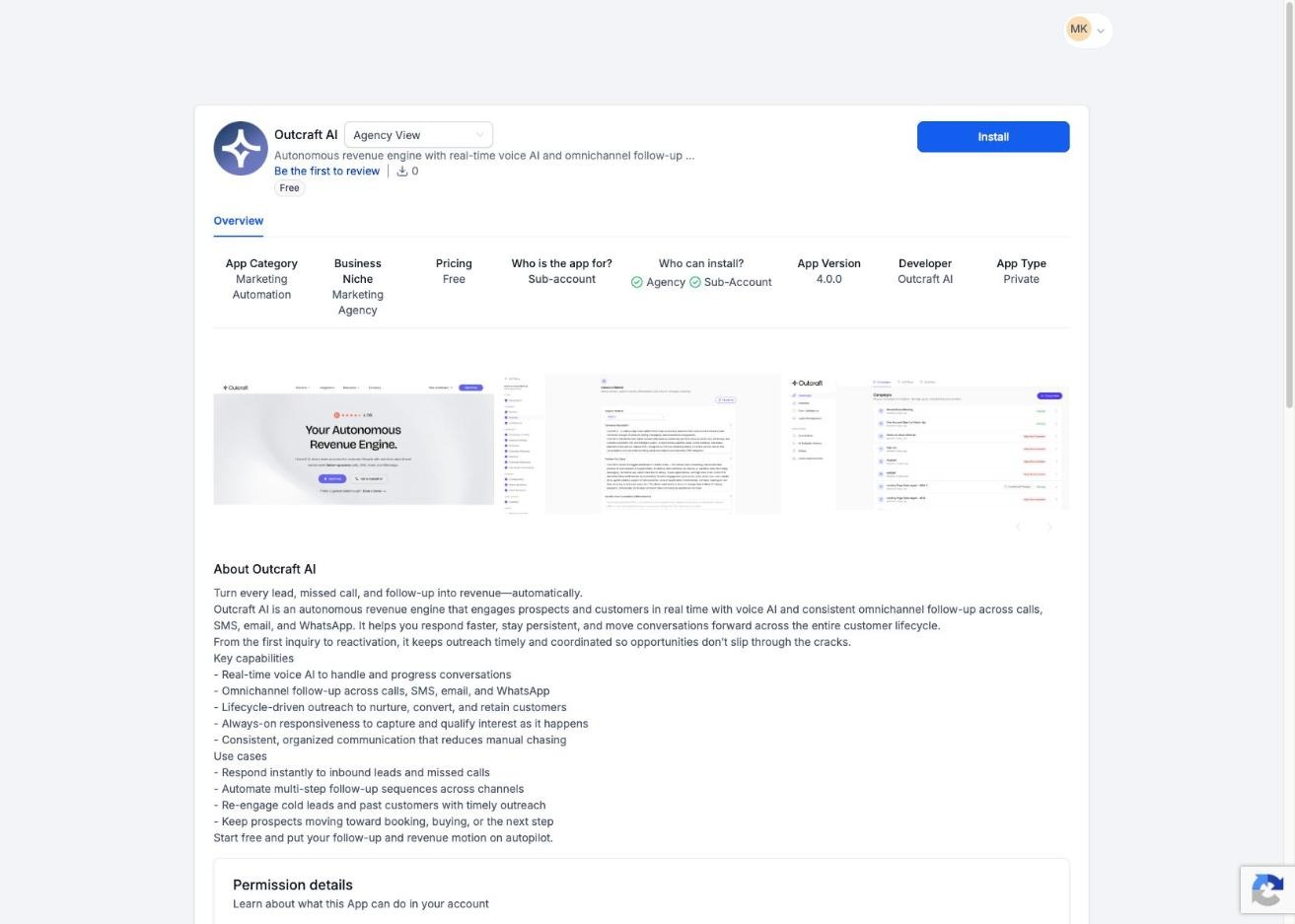
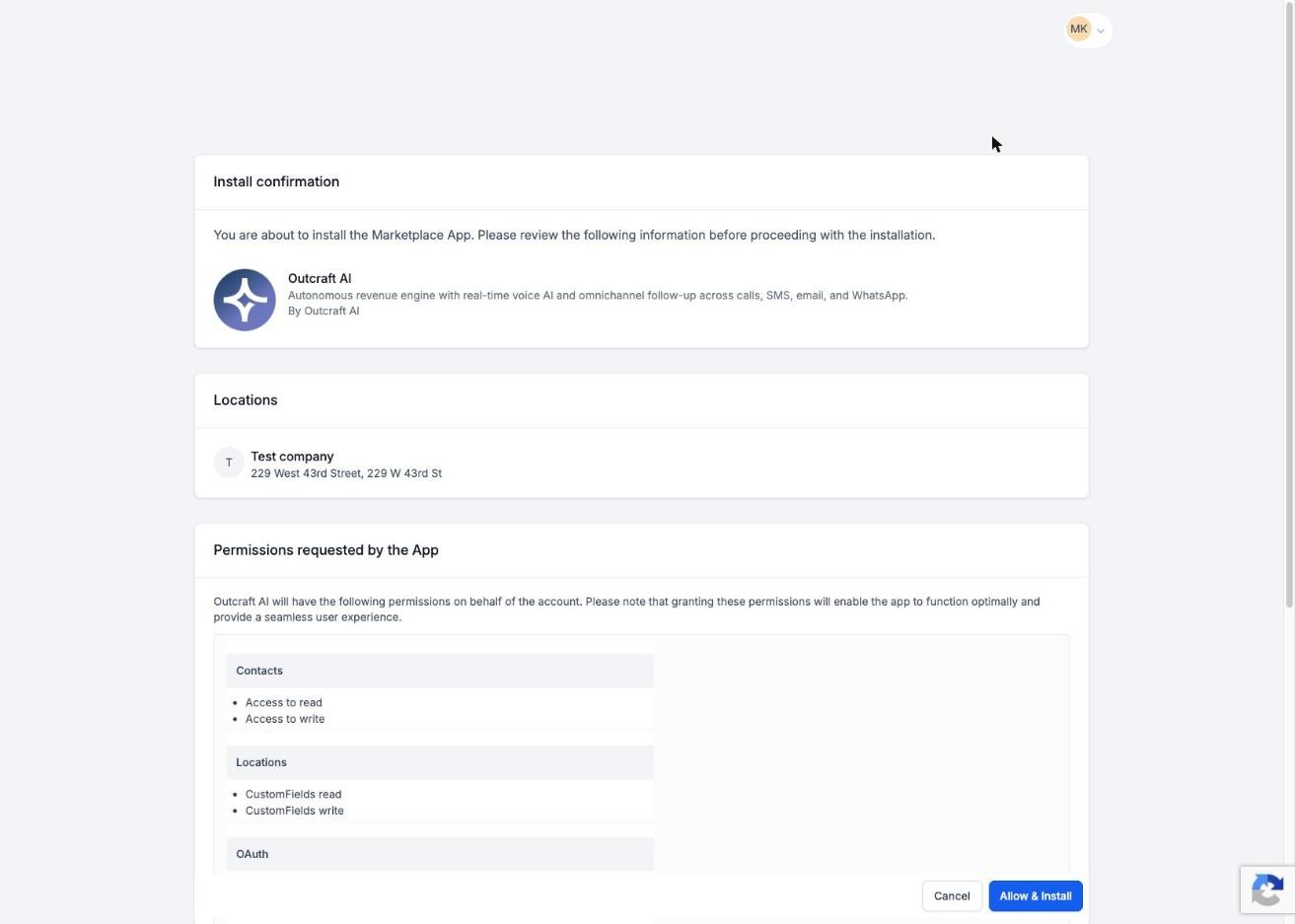
5. Click Install, sign in to GoHighLevel if prompted, then confirm. GoHighLevel shows exactly which sub-account will be connected and a full breakdown of requested permissions (Contacts read/write, Locations custom fields read/write, Calendars, OAuth) before you approve.
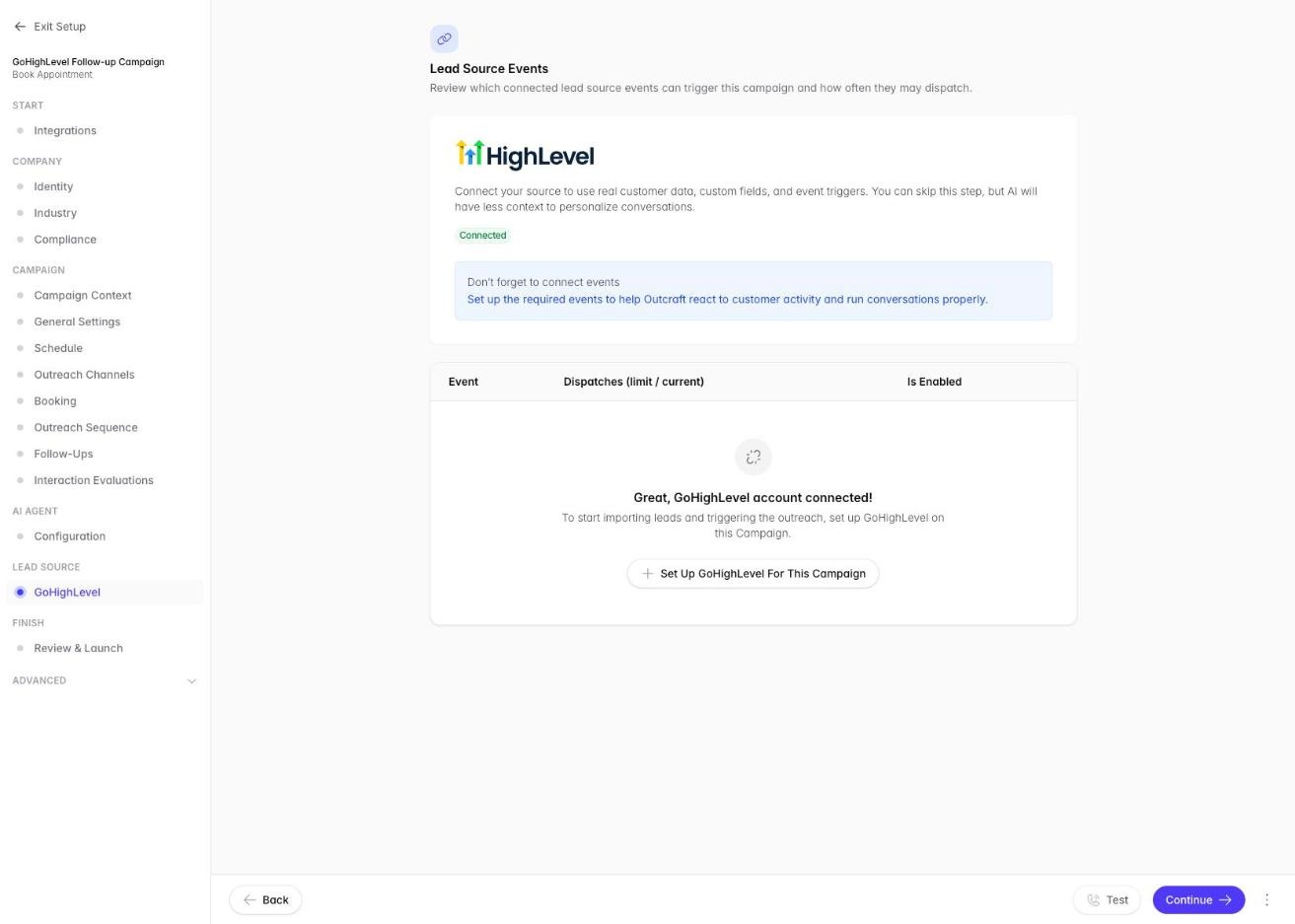
6. Back in Outcraft, the Integrations step now shows Connected. Click Set Up GoHighLevel For This Campaign to create the lead trigger, optionally setting a dispatch limit (max leads this integration will contact) and a cooldown period (days before recontacting the same lead).
7. Toggle the Lead Updated event on, then continue through the rest of campaign setup (schedule, outreach channels, sequence, etc.) as normal.
8. Behind the scenes, Outcraft automatically creates a custom contact field named “Outcraft Active Campaign ID” (merge key: {{contact.outcraft_active_campaign_id}}) in your connected GoHighLevel sub-account, under Settings > Custom Fields > Additional Info.
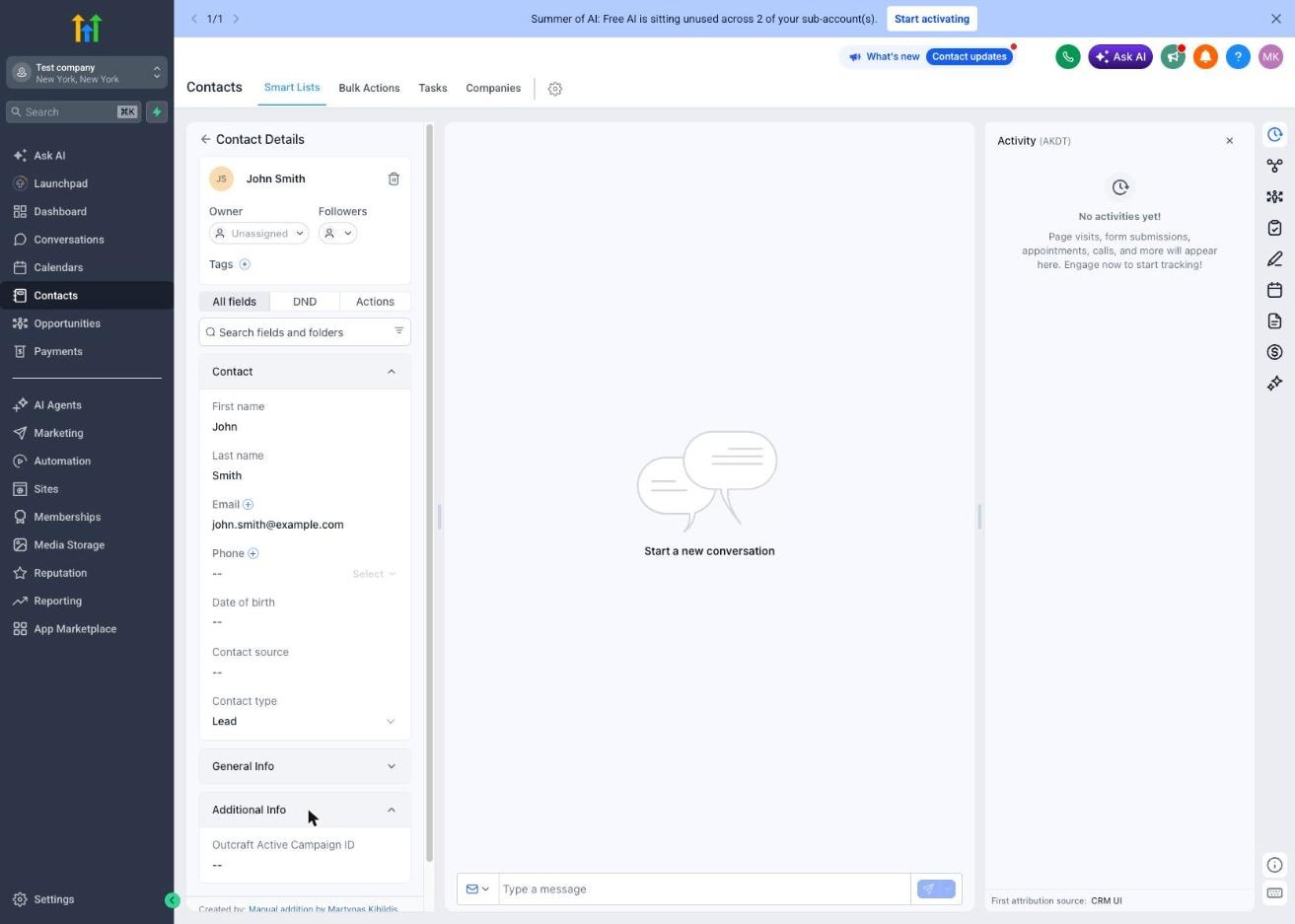
9. To start this campaign for a specific contact, set that contact’s “Outcraft Active Campaign ID” field to this campaign’s numeric ID — most commonly done via a GoHighLevel workflow/automation step (“Set custom field value”) triggered by whatever condition should start outreach (a tag, a form submission, a pipeline stage change, etc.). Setting the field to 0 stops the campaign for that contact.
How It Works
What Outcraft pulls from GoHighLevel
Contact ID, first name, last name, email, and phone number from the incoming Contact Updated webhook
The full raw contact object as additional context for the AI agent
Note: Outcraft does not read GoHighLevel tags, pipelines, opportunity stage, or custom field values beyond what’s included in the raw contact payload, and there’s no way to filter which GoHighLevel contacts feed a campaign by list, tag, or pipeline stage. Any contact that triggers a Contact Updated event (with the campaign field set) is picked up.
What Outcraft writes back to GoHighLevel
A note on the contact for every call, email, SMS, or WhatsApp interaction the AI agent has with them (titled “Outcraft AI - Call”, “Outcraft AI - Email”, or “Outcraft AI - SMS”/”WhatsApp”), including direction, status, timestamp, and a link back to Outcraft. Call notes also include a recording link, summary, and transcript.
The “Outcraft Active Campaign ID” custom field definition, created once automatically. Outcraft never writes a value into it — you or a GoHighLevel workflow control that.
No changes are made to tags, pipelines, or opportunity stages.
Sync behavior: Real-time and webhook-driven only — there’s no polling and no bulk/one-time import. Outcraft only sees a lead when GoHighLevel sends a Contact Updated webhook.
FAQ
How do I disconnect GoHighLevel from my account?
There is currently no self-service way to disconnect a connected GoHighLevel account from within Outcraft. Contact support to have it disconnected.
I selected more than one sub-account when connecting — what happens?
GoHighLevel integration supports only one sub-account per Outcraft user. Selecting multiple sub-accounts during the connect flow will prevent the integration from working. Reconnect and select exactly one sub-account.