How to Set Up the Outcraft AI HubSpot App
Last updated: July 20, 2026
This guide explains how to connect Outcraft AI to HubSpot, create your first campaign, and launch AI-powered outreach for selected HubSpot contacts.
With the Outcraft AI HubSpot app, you can trigger campaigns directly from HubSpot by setting a contact property. Once a contact is enrolled, Outcraft AI can automatically contact the lead using the channels configured in your campaign, such as phone calls, SMS, and email.
Step 1: Install the Outcraft AI app in HubSpot
Start by opening the Outcraft AI HubSpot app installation link.
HubSpot will ask you to choose the HubSpot account where you want to install the app. Select the correct account and continue.
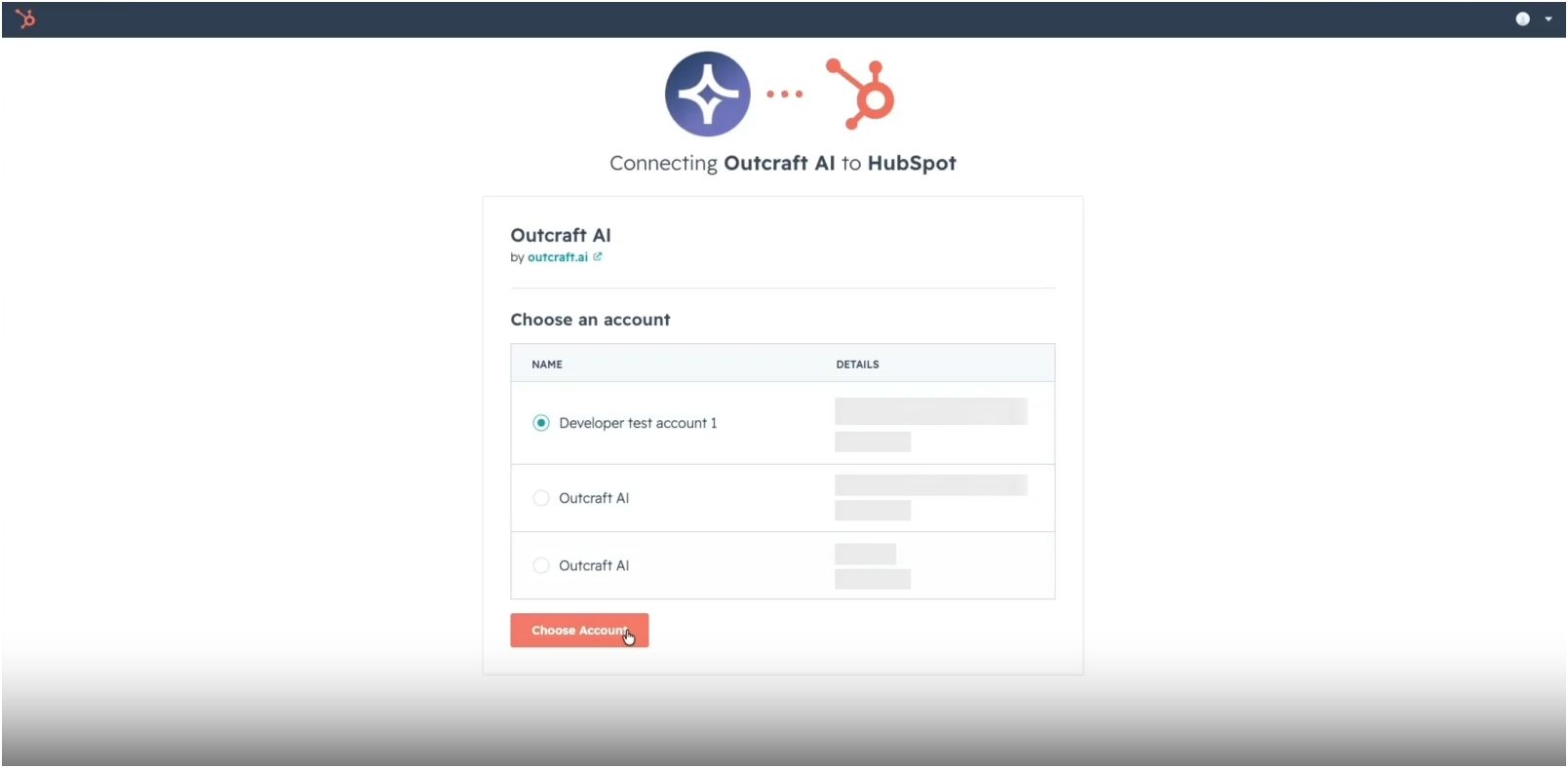
After selecting the account, review the requested permissions and approve the connection.
Step 2: Complete OAuth authentication
After you approve the HubSpot permissions, Outcraft AI will complete the OAuth authentication process.
Once the connection is successful, you will be redirected to the app’s home page.
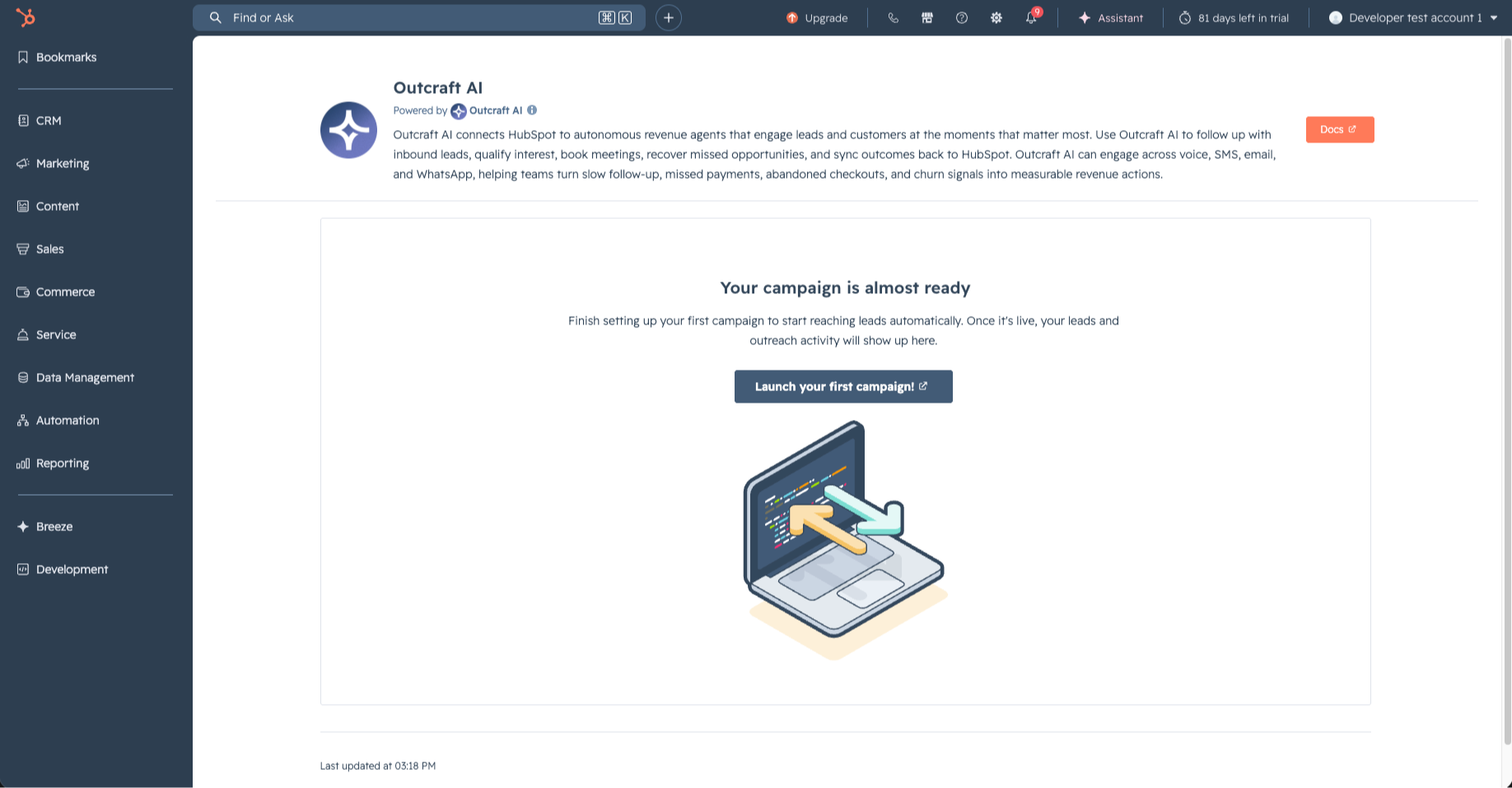
At this point, your HubSpot account is connected to Outcraft AI. You do not need a separate Outcraft login during installation. An Outcraft account is automatically created and linked after OAuth authentication.
Step 3: Create your campaign in Outcraft AI
From the app’s home page, click "Launch your first campaign", and you will be redirected to Outcraft AI platform.
Inside Outcraft AI, configure the campaign details, including:
The campaign goal
The outreach channels, such as phone calls, SMS, and email
The campaign messaging
Follow-up behavior
Any qualification or booking instructions
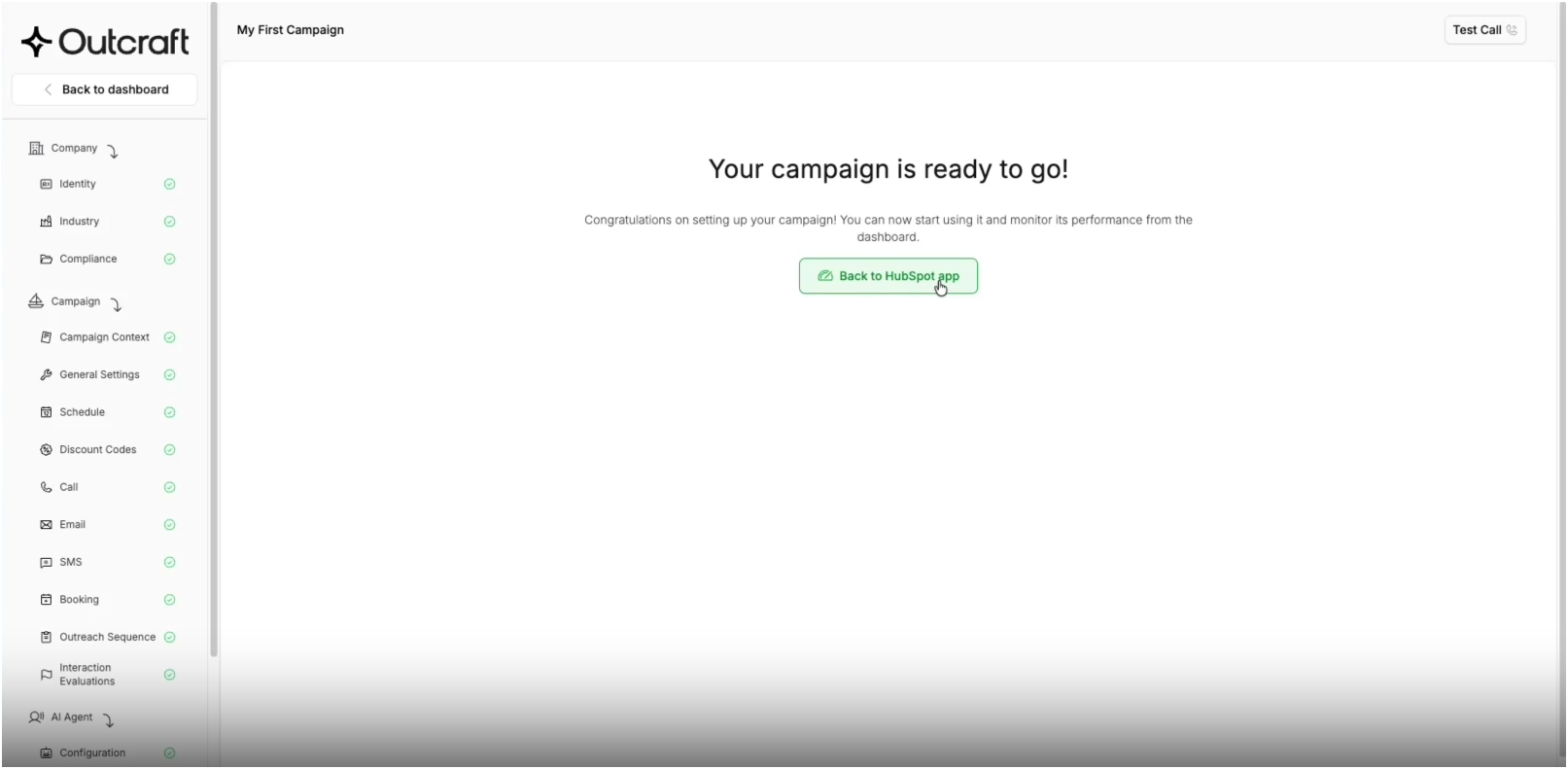
After the campaign is created, Outcraft AI will show you the campaign ID that should be used to launch the campaign from HubSpot.
Outcraft AI also creates a HubSpot contact property called: outcraft_active_campaign_id
This property is used to start a campaign for a specific HubSpot contact.
Step 4: Launch the campaign from HubSpot
To launch the campaign for a contact, go back to HubSpot and open the contact record you want to enroll.
Find the contact property: outcraft_active_campaign_id
Set this property to the Outcraft campaign ID shown in Outcraft AI.
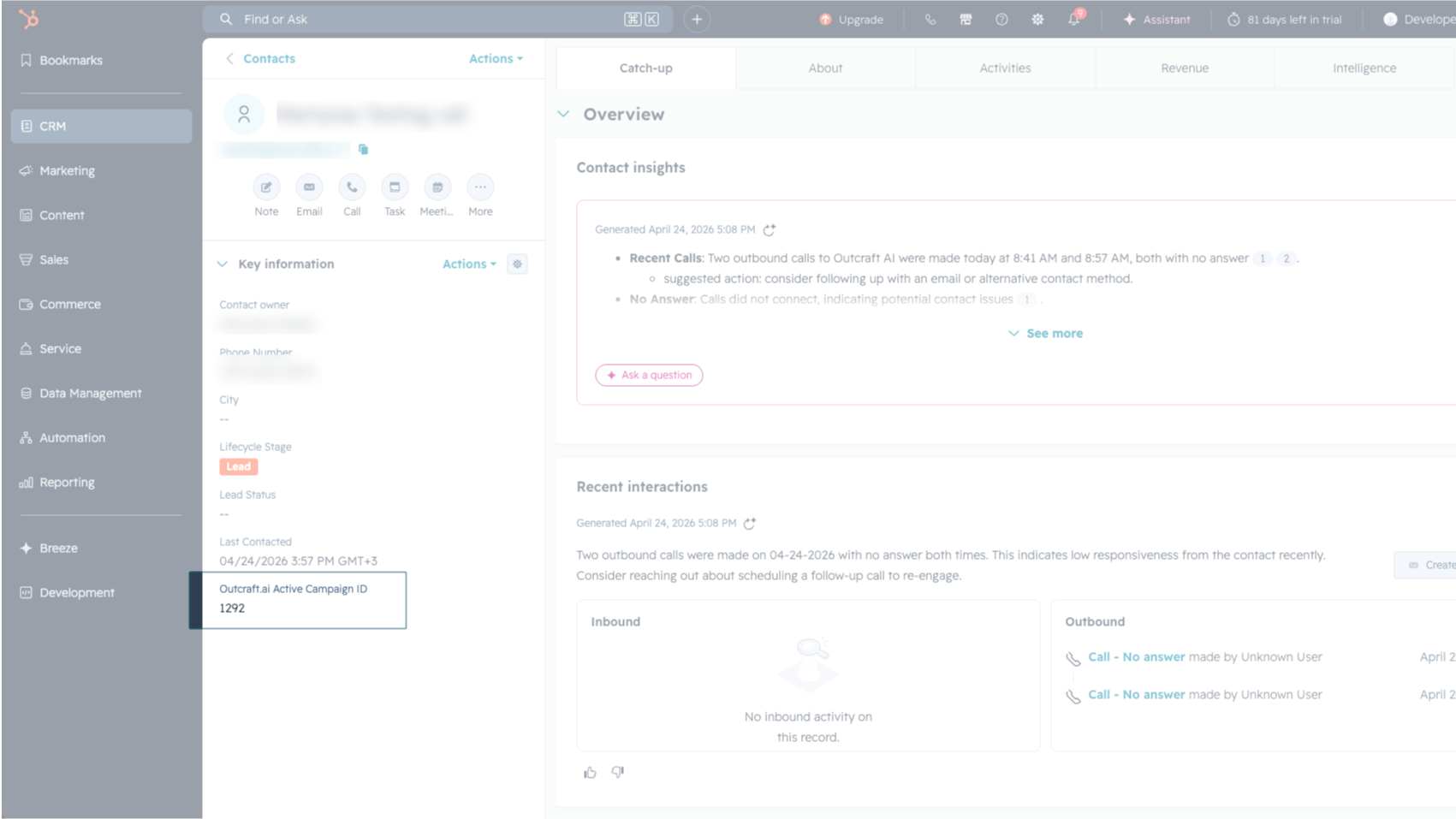
After you set the contact property to the campaign ID, Outcraft AI will automatically import the contact and start the campaign for that contact.
You can also automate this step using HubSpot Workflows. For example, you can create a workflow that sets outcraft_active_campaign_id when a contact submits a form, reaches a lifecycle stage, matches a lead score, or meets another trigger condition.
Step 5: Outcraft AI contacts the lead automatically
Once the contact is enrolled, Outcraft AI starts the campaign automatically.
The AI agent will contact the lead using the channels configured in the campaign, such as phone calls, SMS, or email.
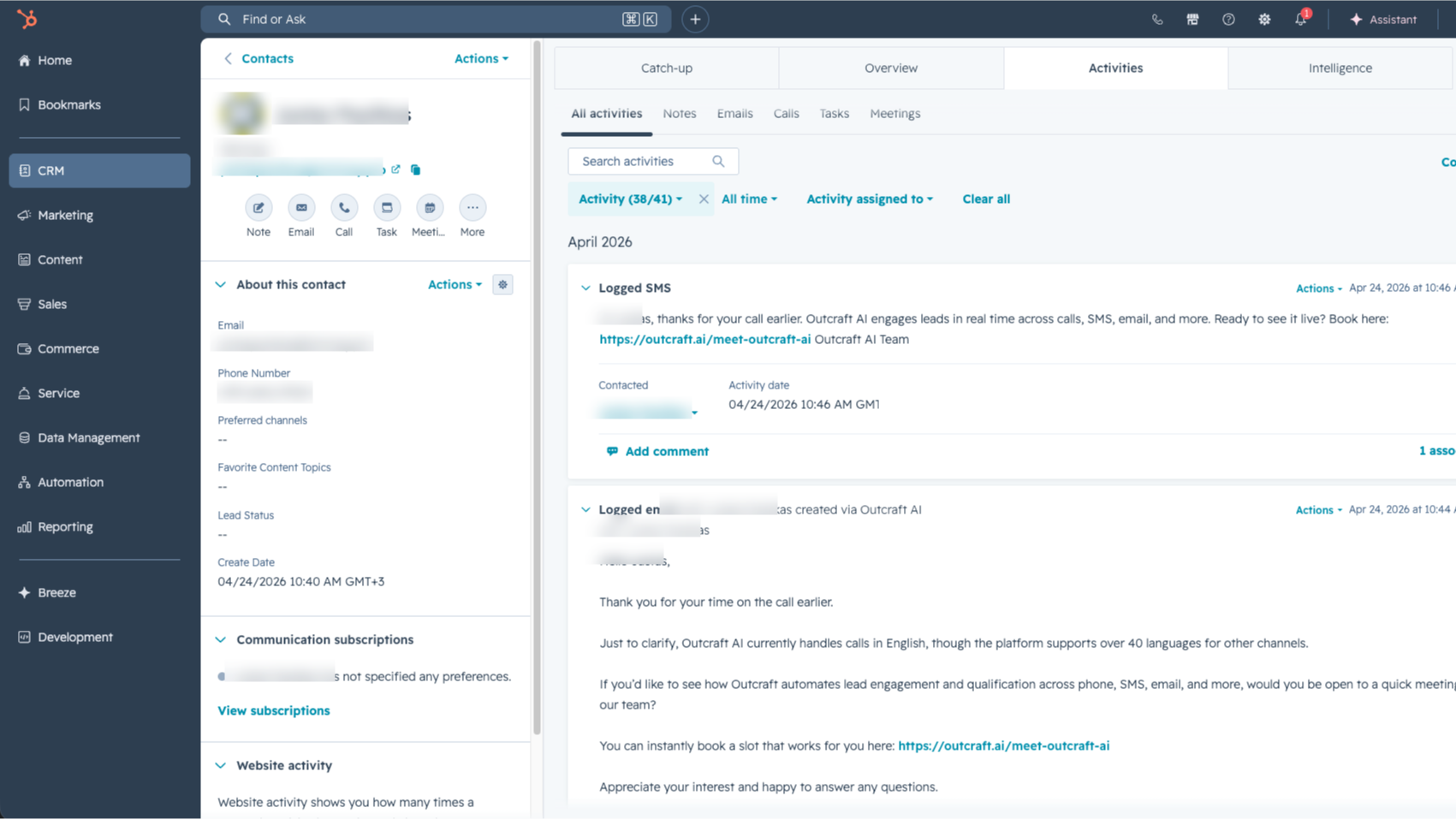
When the AI agent interacts with the lead, the interaction is logged back in HubSpot on the associated contact record.
This helps your team keep outreach activity visible in HubSpot while Outcraft AI handles follow-up automatically.
That’s it
Your Outcraft AI HubSpot app is now set up.
To run future campaigns, create or select a campaign in Outcraft AI, then set the outcraft_active_campaign_id property on the HubSpot contacts you want to enroll.
Once the property is set, the campaign starts automatically.