Connecting Email Accounts (Google Workspace, Microsoft 365, IMAP/SMTP)
Last updated: July 22, 2026
The email account is the inbox the agent sends from, replies from, and threads conversations in. Three mailbox types are supported: Google Workspace, Microsoft 365/Outlook, and standard IMAP/SMTP.
Google Workspace
This needs your Google Workspace administrator, not just the campaign owner. This is the most common place onboarding stalls — line up your admin first.
In Add Mailbox, set Mailbox Type to Google Workspace.
Your Workspace admin opens App Access Control in the Google Admin console and clicks Configure new app.
Search by the Google App ID shown in Outcraft (use the Copy button — don’t retype it), select Outcraft AI, and approve it.
Set data access type to Trusted, finish the wizard, then click Connect in Outcraft.
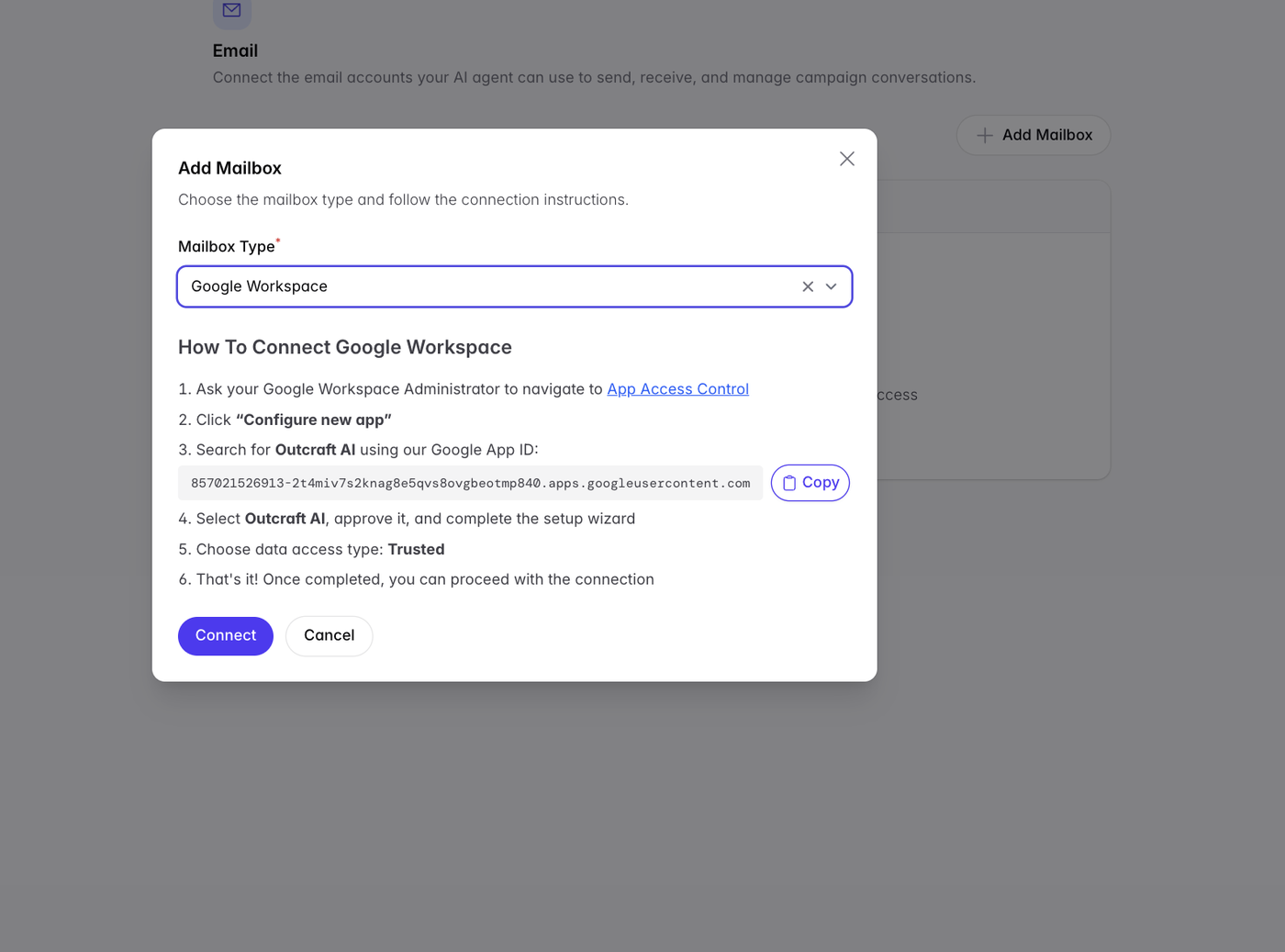
Watch out: the Google route requires admin rights and the Trusted access level — “Limited” silently blocks sending. If you’re not the admin, send them the steps above and the App ID; they need nothing else from Outcraft.
Microsoft 365 / Outlook
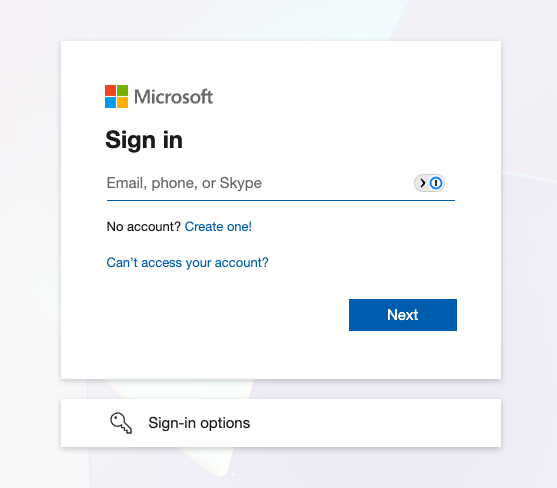
Log in with the M365 or Outlook administrator account that will send emails from Outcraft, and allow the connection.
IMAP/SMTP
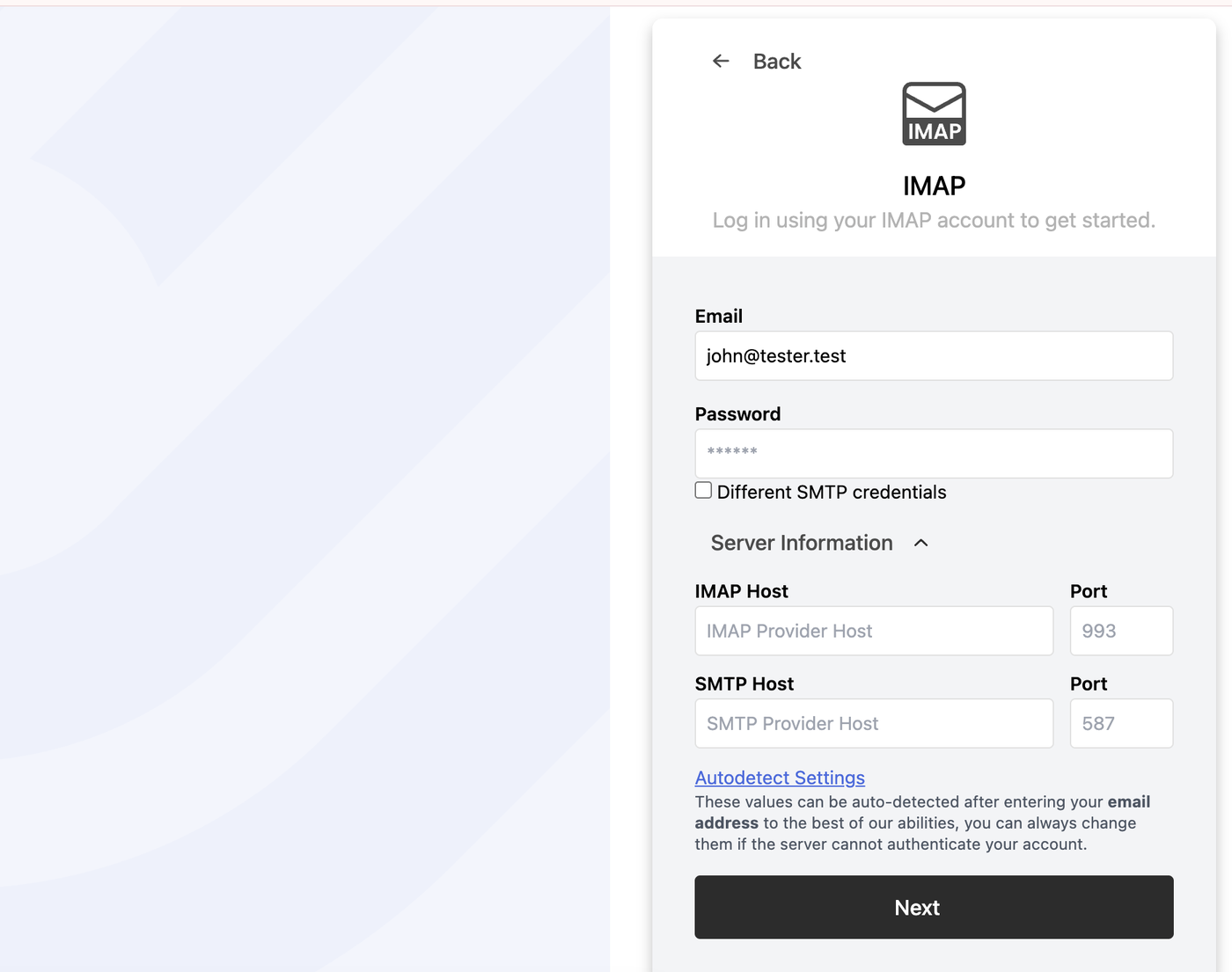
Enter the mailbox email and password.
Expand Server Information and use Autodetect Settings first — it fills IMAP/SMTP host and ports from your email address.
Override only if autodetect can’t authenticate. Tick Different SMTP credentials if your provider needs them.
Email authentication (SPF, DKIM & DMARC)
Outcraft provides built-in SPF, DKIM, and DMARC verification so you can confirm your sending domain is properly authenticated before you start a campaign. Correct authentication keeps your mail out of spam and, since 2024, is required by Gmail and Outlook for bulk senders. For step-by-step setup instructions, see Setting Up SPF, DKIM & DMARC.