Connecting Pipedrive to your campaign
Last updated: June 30, 2026
Step 1: Choose Pipedrive as your lead source
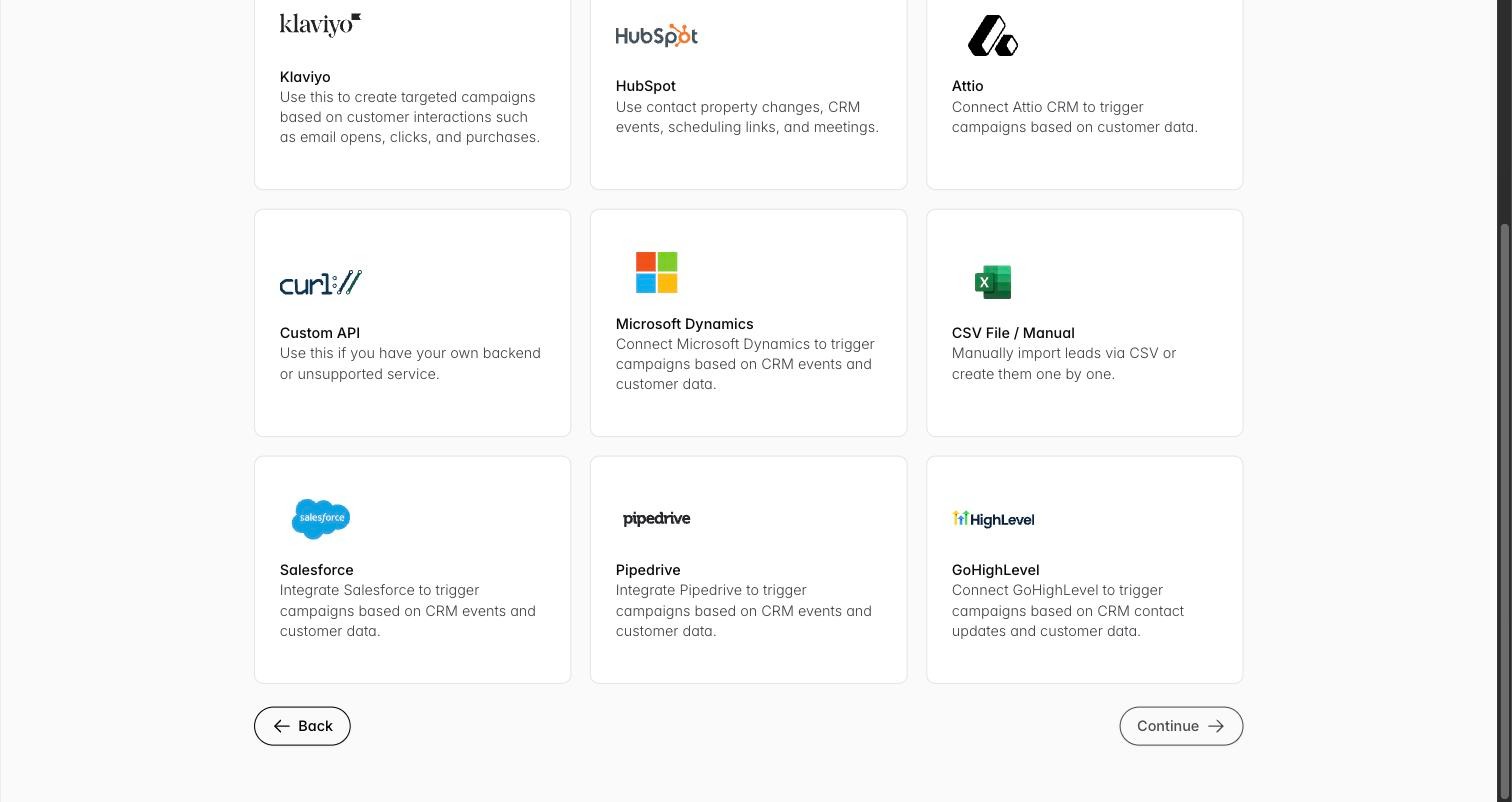
When creating a campaign, go to the Lead Source step. You’ll see a grid of supported sources — Klaviyo, HubSpot, Attio, Custom API, Microsoft Dynamics, CSV/Manual, Salesforce, Pipedrive, and GoHighLevel. Select Pipedrive.
Step 2: Connect your Pipedrive account
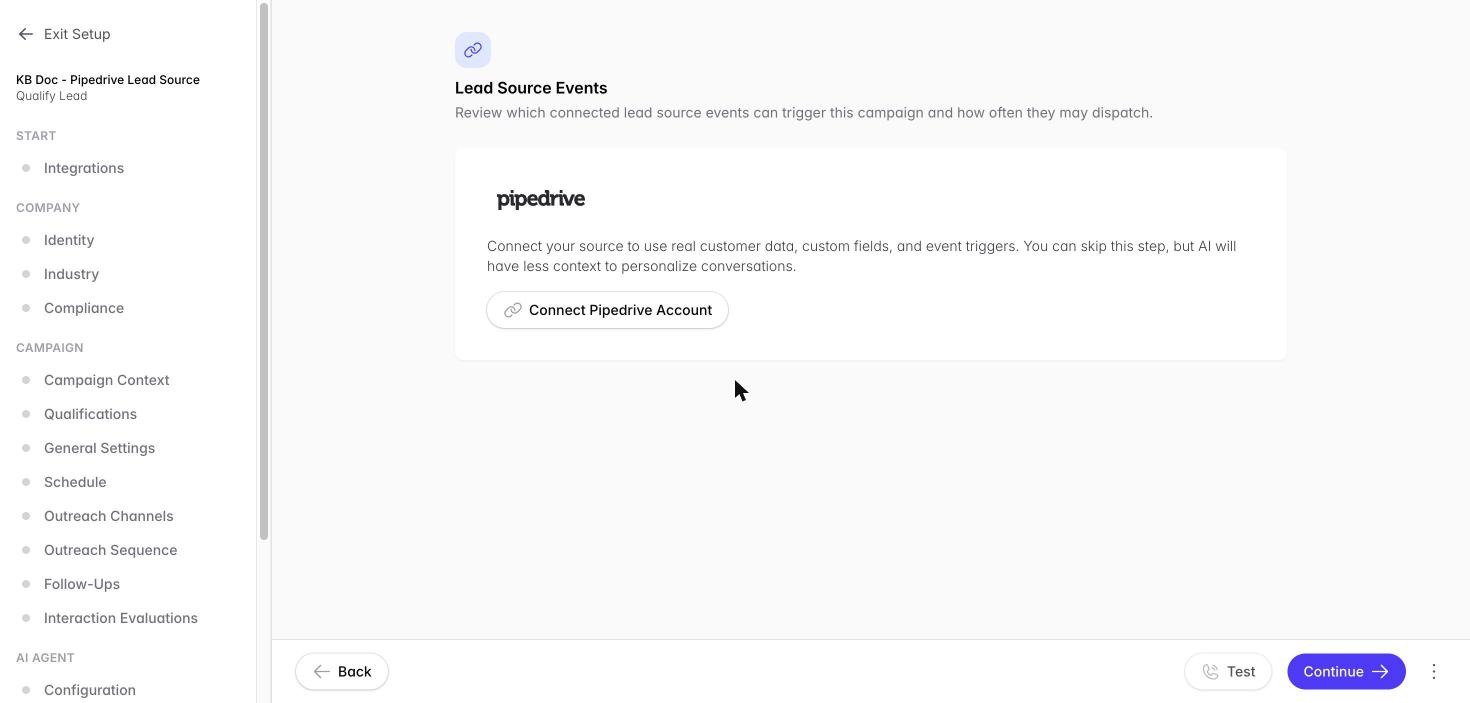
On the Integrations screen, click Connect Pipedrive Account. This starts an OAuth flow — you authorize Outcraft directly through Pipedrive, no API keys to copy or paste.
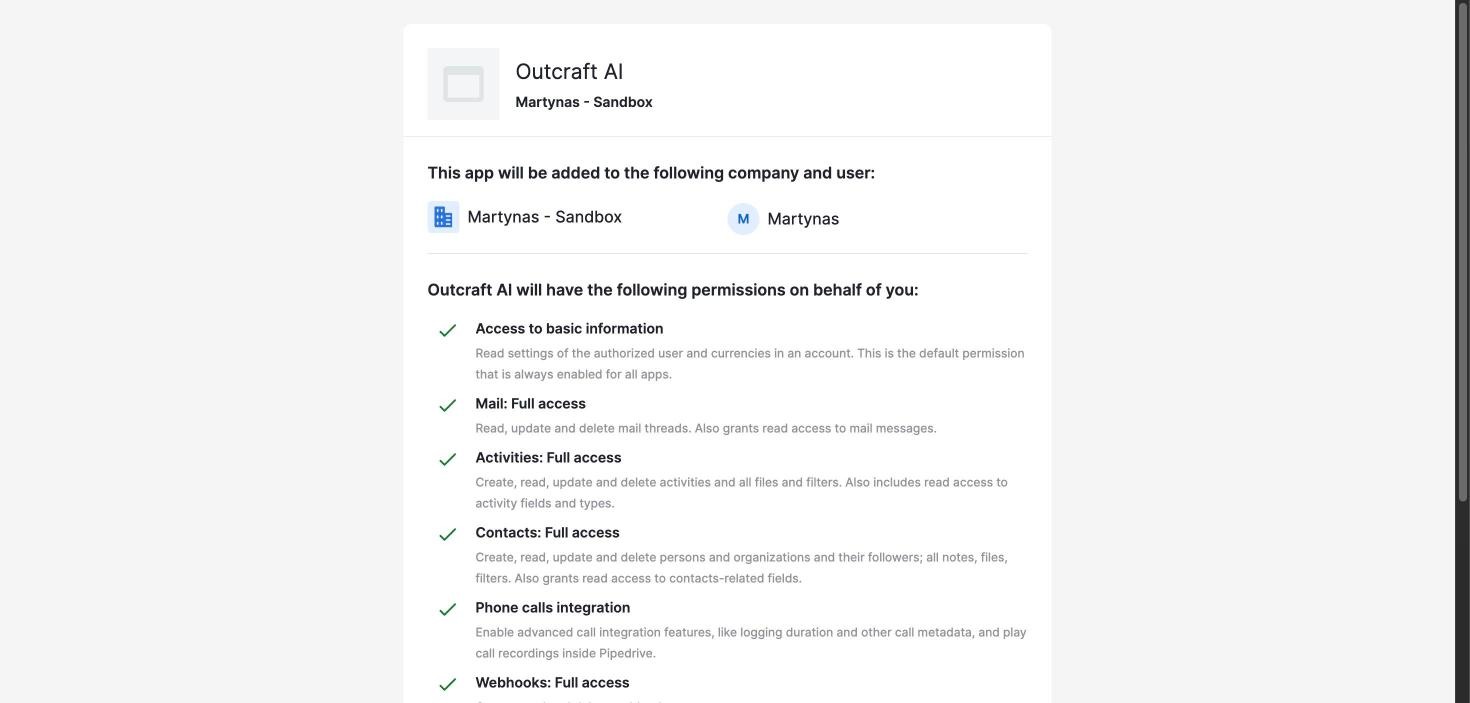
You’ll be redirected to Pipedrive’s login, then to a permissions screen showing exactly what Outcraft is requesting access to:
basic information;
Mail (Full access);
Activities (Full access);
Contacts (Full access);
Phone calls integration;
Webhooks (Full access);
Contact Fields (Full access).
Review the permissions and click Allow and Install in Pipedrive to finish connecting.
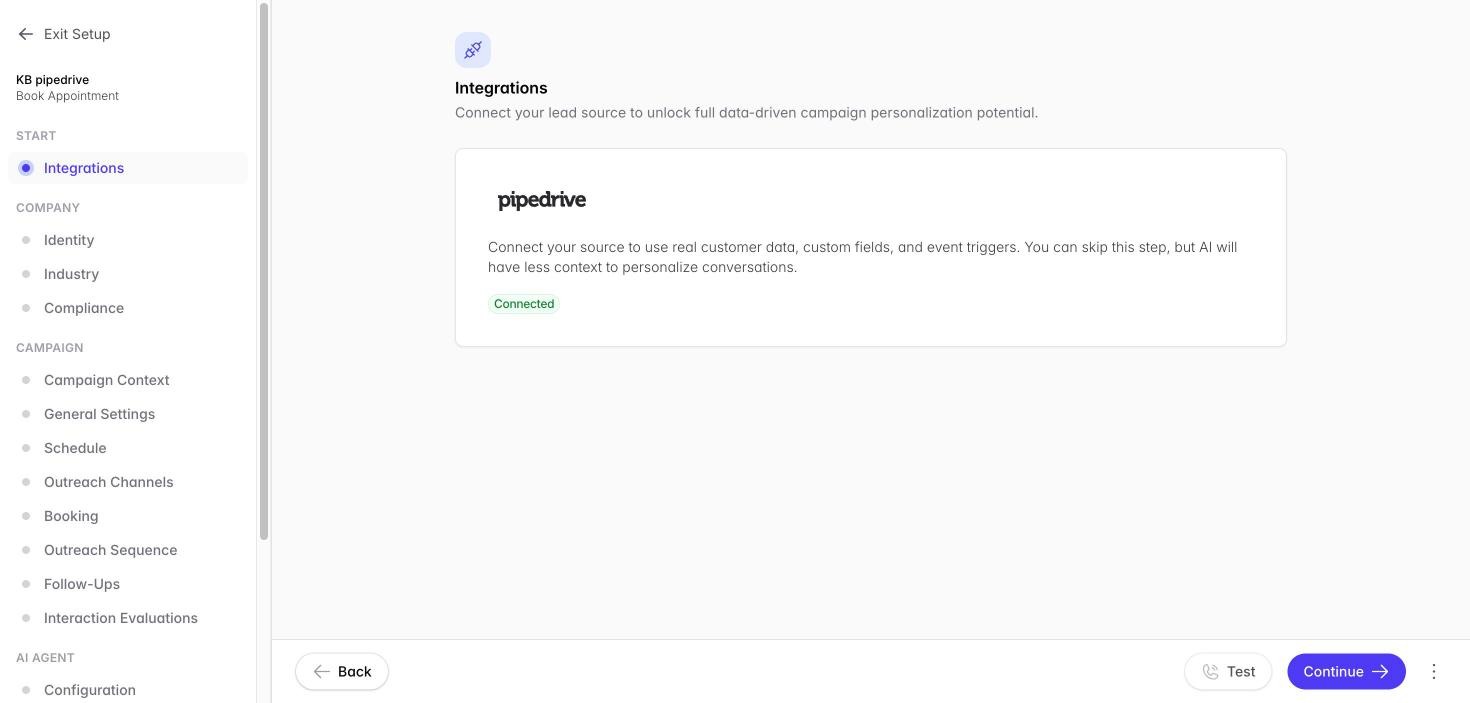
Back in Outcraft, the integration now shows as Connected.
Step 3: Set up Pipedrive for this specific campaign
Connecting your account links Outcraft to your Pipedrive — but each campaign also needs its own setup. Go to the campaign’s Pipedrive step (under Lead Source) and click Set Up Pipedrive For This Campaign. You’ll be asked for two settings: Dispatches limit (how many leads this integration may contact through this campaign — leave blank for unlimited) and Cooldown in days (how long to wait before contacting the same lead again — default 30 days).
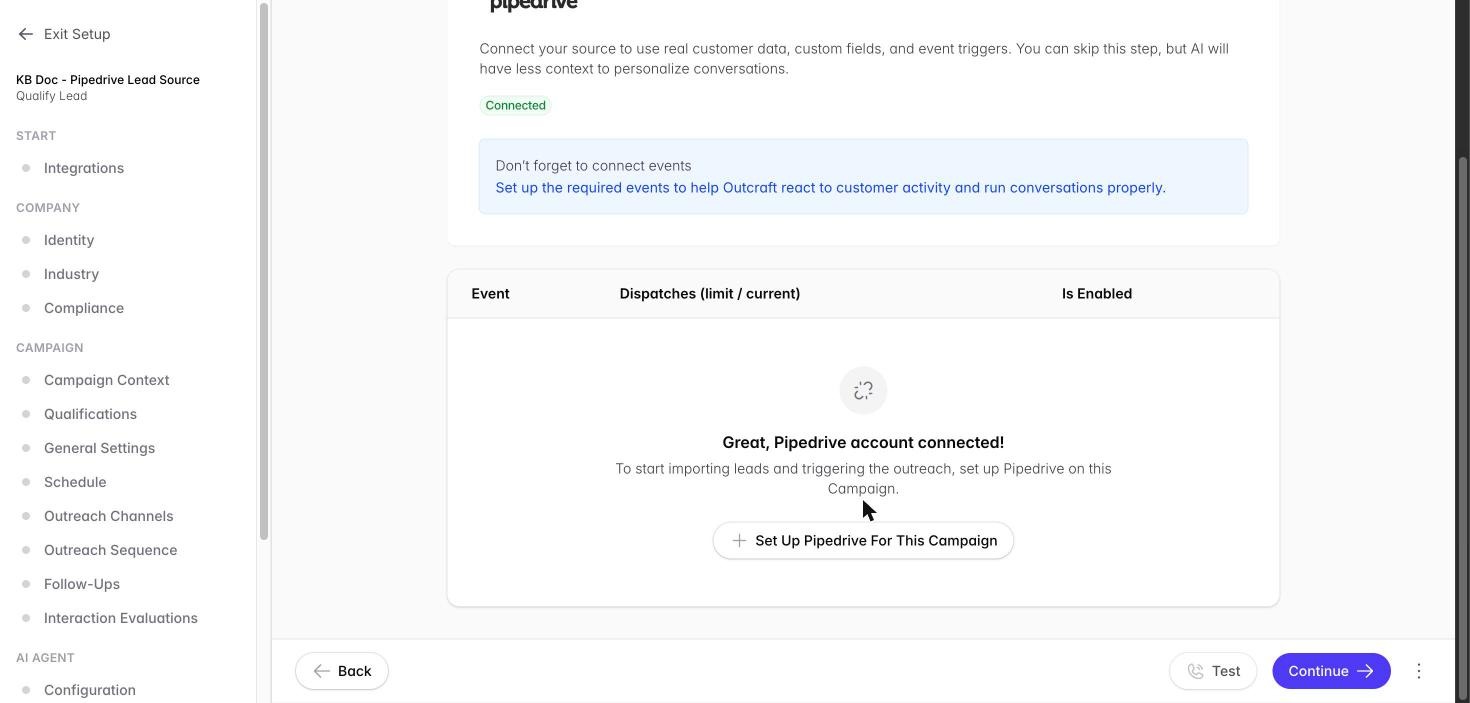
Click Create. Outcraft will now automatically, behind the scenes: create a custom field on your Pipedrive Person records called “Outcraft Active Campaign ID”, and register a webhook with Pipedrive so it’s notified instantly whenever a Person record changes.
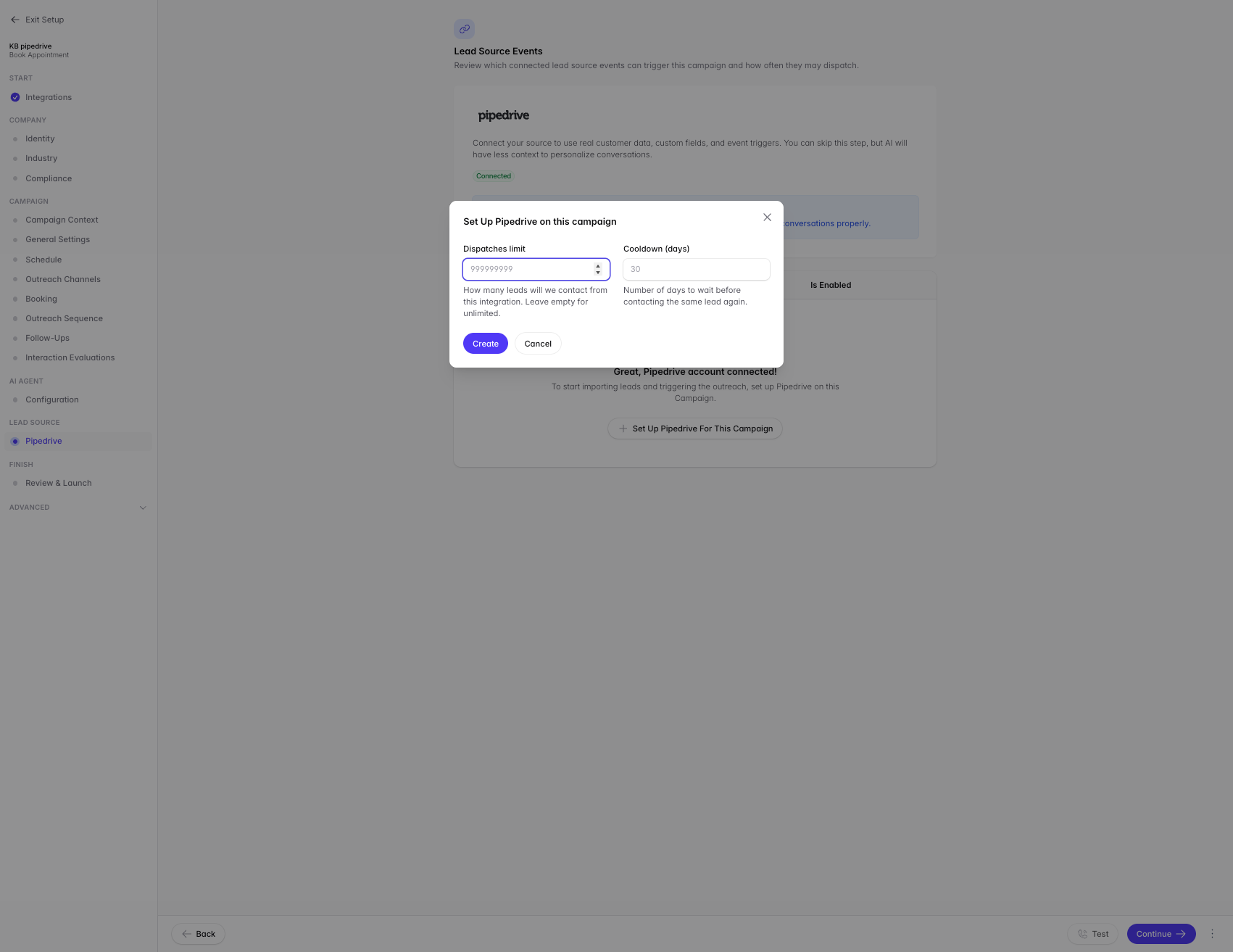
Step 4: How leads actually get enrolled
After setup, Outcraft shows you the exact, ready-to-use instructions for this campaign — including its real campaign ID:
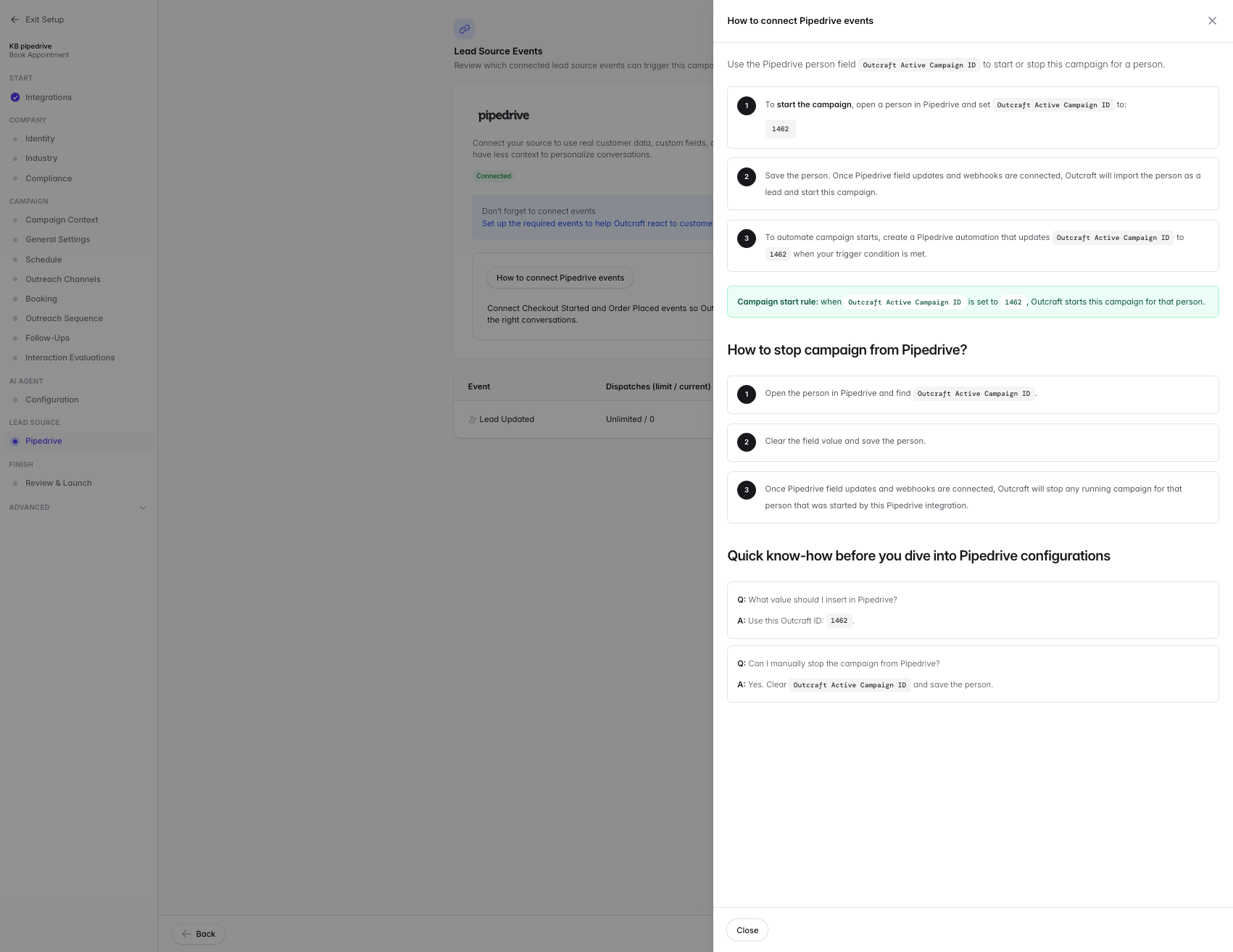
To start the campaign for someone: 1) Open their Person record in Pipedrive. 2) Set the “Outcraft Active Campaign ID” field to this campaign’s ID. 3) Save the person. Once saved, Outcraft imports that person as a lead and starts the campaign for them — typically within seconds.
To stop the campaign for someone: 1) Open their Person record in Pipedrive. 2) Clear the “Outcraft Active Campaign ID” field. 3) Save the person. Outcraft will cancel any in-progress campaign run for that person.
Tip: Most teams don’t set this field by hand. Instead, build a Pipedrive automation that sets “Outcraft Active Campaign ID” automatically when a trigger condition is met — e.g. “when a deal enters the Demo Booked stage.”
Step 5: What it looks like on the Pipedrive side
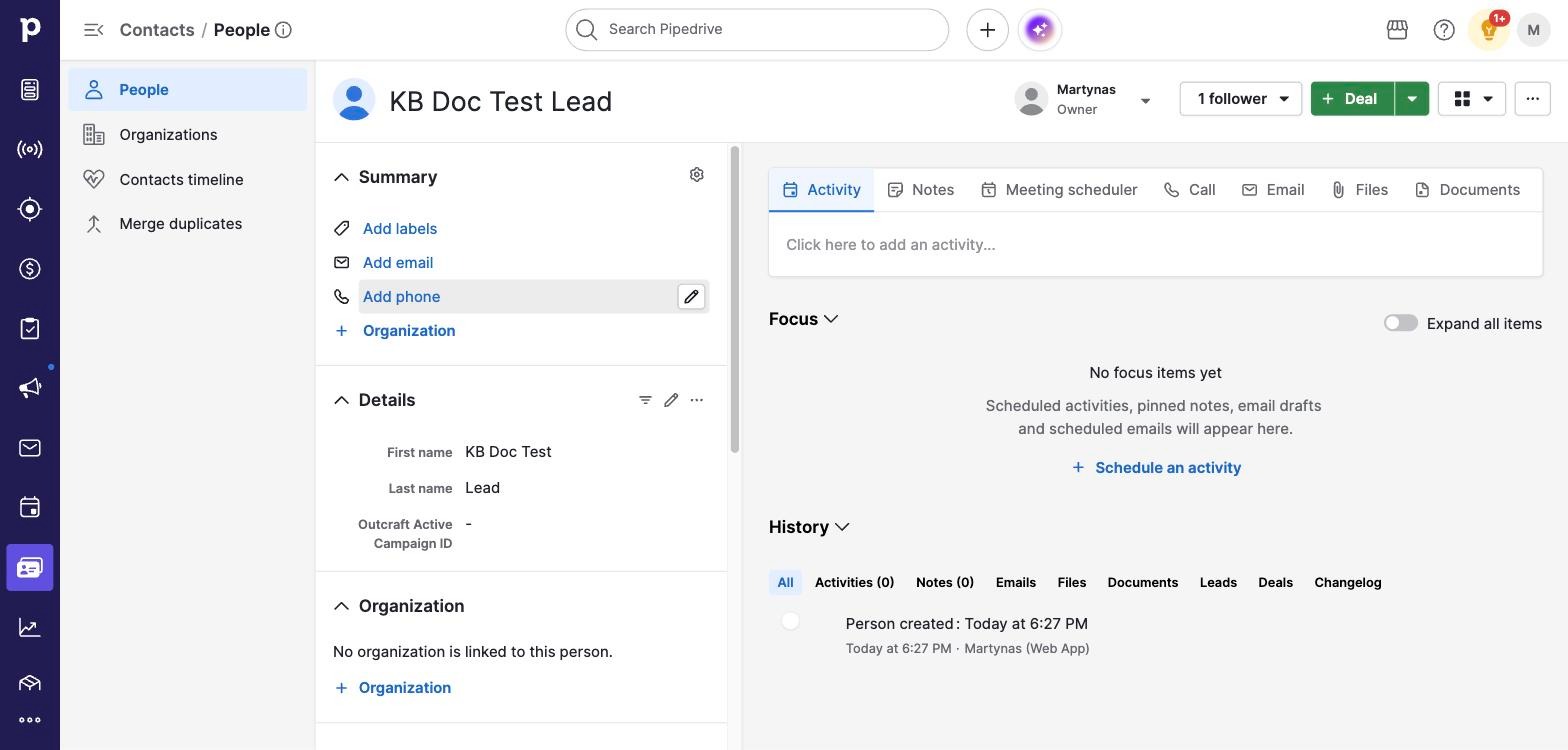
Once connected, every Person record in your Pipedrive shows the new custom field in its Details panel. Here it’s set to enroll the person into this campaign:
What data gets pulled from Pipedrive
When a person is enrolled, Outcraft imports: name, primary email, primary phone; Pipedrive Person ID; and any custom fields on the Person record (kept as context so the AI agent can personalize the conversation).
What gets synced back to Pipedrive
Every interaction Outcraft has with a lead is logged onto their Pipedrive record automatically. Calls become an Activity (type “Call”) with direction, outcome, duration, recording link, and transcript. Emails become an Activity (type “Email”) with subject, sender/recipient, and message content. SMS and WhatsApp messages become a Note, since Pipedrive has no native Activity type for messaging channels. If Outcraft doesn’t have permission to create Activities in your Pipedrive, it automatically falls back to creating a Note instead, so nothing is silently lost.
Good to know
Connecting Pipedrive is optional during campaign setup — you can skip it, but the AI agent will have less context to personalize conversations. One Pipedrive connection can power multiple campaigns; just use a different campaign ID in the “Outcraft Active Campaign ID” field to route a person to a different campaign. Duplicate webhook deliveries (e.g. Pipedrive retries) are automatically deduplicated, so a person is never accidentally double-enrolled.